Sync your cloud storage as a local folder and sign documents in Agrello straight from the file picker. Setup guide for Windows and Mac.
If your company documents already live in SharePoint, Google Drive, or Dropbox, it's easy to assume that signing them in Agrello requires some kind of special connector or integration. So you end up in a tedious loop: download the file from the cloud, find it, upload it to Agrello, sign it, download the signed version again, and manually move it back to the right cloud folder.
None of that is necessary. Your cloud storage is already an ordinary folder on your computer — you just haven't switched it on yet. All three major providers offer a desktop app that mounts your cloud as a local drive. After that, Agrello sees those files through the same ordinary file picker as any other document on your computer.
This article shows how to set up sync on all three services on Windows and Mac, and how to then sign a document in Agrello so the signed file lands back in the cloud automatically.
The core idea: your cloud as a local drive
A desktop sync app (OneDrive, Google Drive for desktop, or Dropbox) does one simple thing: it mounts your cloud storage as a separate location inside Windows File Explorer or macOS Finder. The files look as if they're on your computer, even though they're really kept in the cloud.
Most apps use streaming ("files on-demand") by default: you can see every file in the folder, but they're only downloaded to your computer when you open them. That keeps your hard drive free, but means you need an internet connection to access them.
For Agrello it makes no difference whether a file is streamed from the cloud or downloaded to your computer — as soon as the cloud folder exists in File Explorer or Finder, you can pick a file from it every time Agrello opens the system file picker.
Set up sync (choose your provider)
OneDrive / SharePoint
The OneDrive desktop app is built into Windows 11. On Windows 10 or Mac, download it from microsoft.com/onedrive and sign in with your work account.
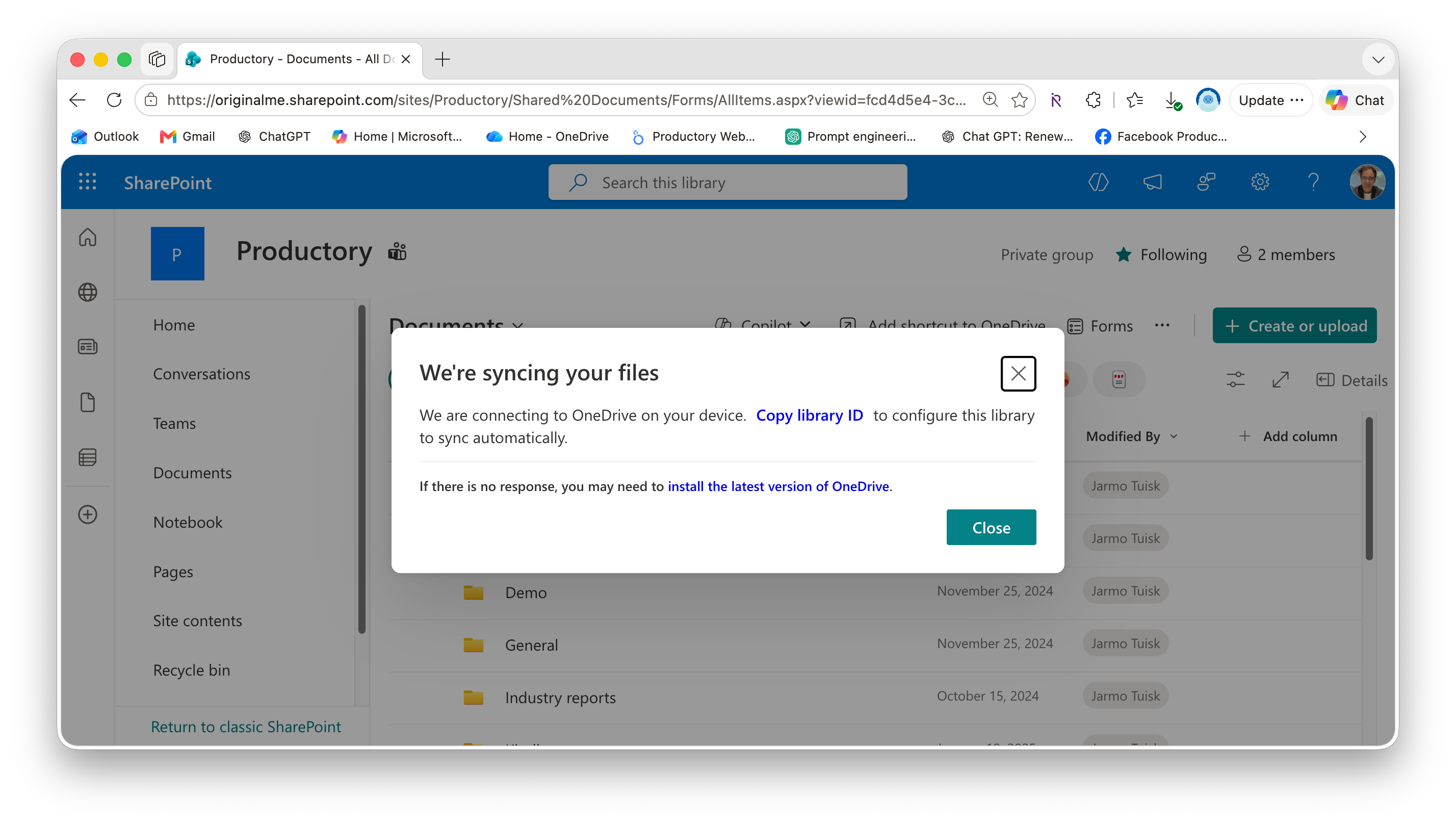
To sync a SharePoint document library:
-
Open the SharePoint library in your browser.
-
Click Sync in the toolbar.
-
If the browser asks for permission to open OneDrive, confirm it and sign in.
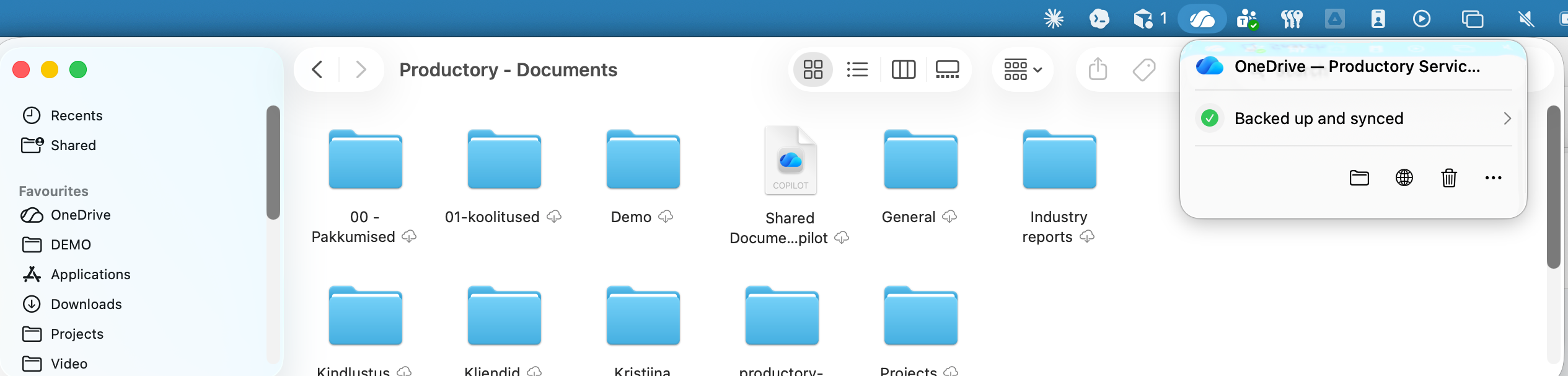
Once synced, your SharePoint files appear in File Explorer (Windows) or Finder (Mac) under your organization's name, each library as its own subfolder.
Note: on older macOS versions (before 12.1) you need to enable "Files On-Demand" in OneDrive settings before syncing. On Windows and newer macOS it's on by default.
Google Drive
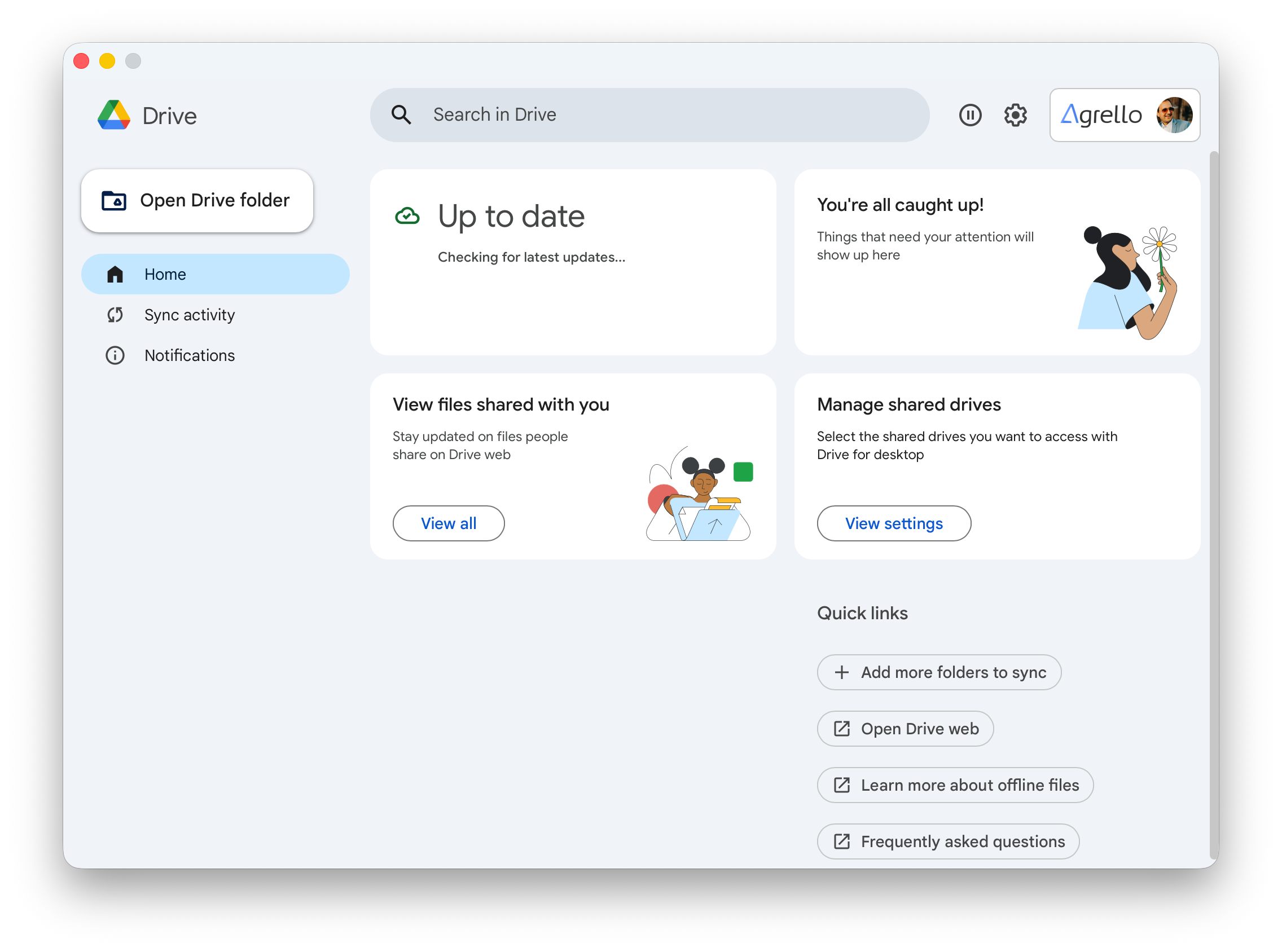
Download Google Drive for desktop from google.com/drive/download (.exe for Windows, .dmg for Mac), run the installer, and sign in with your Google account.
After installation, a location named Google Drive appears in File Explorer or Finder, containing "My Drive" and "Shared drives".
Google Drive offers two modes:
- Streaming — files live only in the cloud and download when you open them. Saves disk space.
- Mirroring — files are kept both on your computer and in the cloud, and are available offline.
Dropbox
Download the Dropbox desktop app from dropbox.com/install, run the installer, and sign in.
After installation, a Dropbox folder appears in File Explorer or Finder, along with a small Dropbox icon in the Windows taskbar (or Mac menu bar). Anything you do in that folder — add, rename, or delete — syncs automatically in the background.
Note: if you want only some folders kept on your computer, use selective sync in the app's settings.
Sign a document in Agrello
Once the cloud folder exists on your computer, the Agrello part is exactly the same for all three services.
-
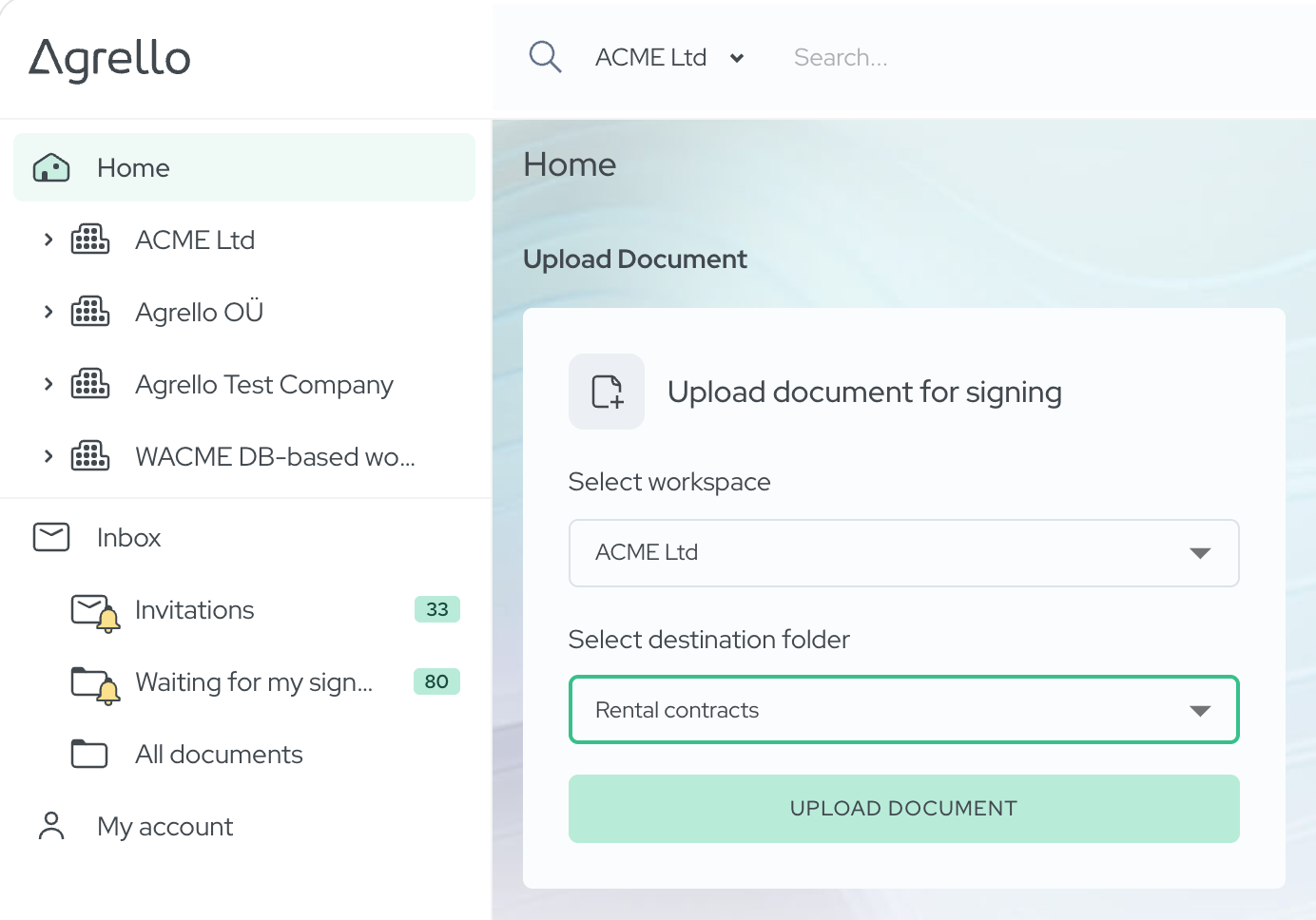
In the Home section, select your workspace and Agrello folder, then click Upload document.
-
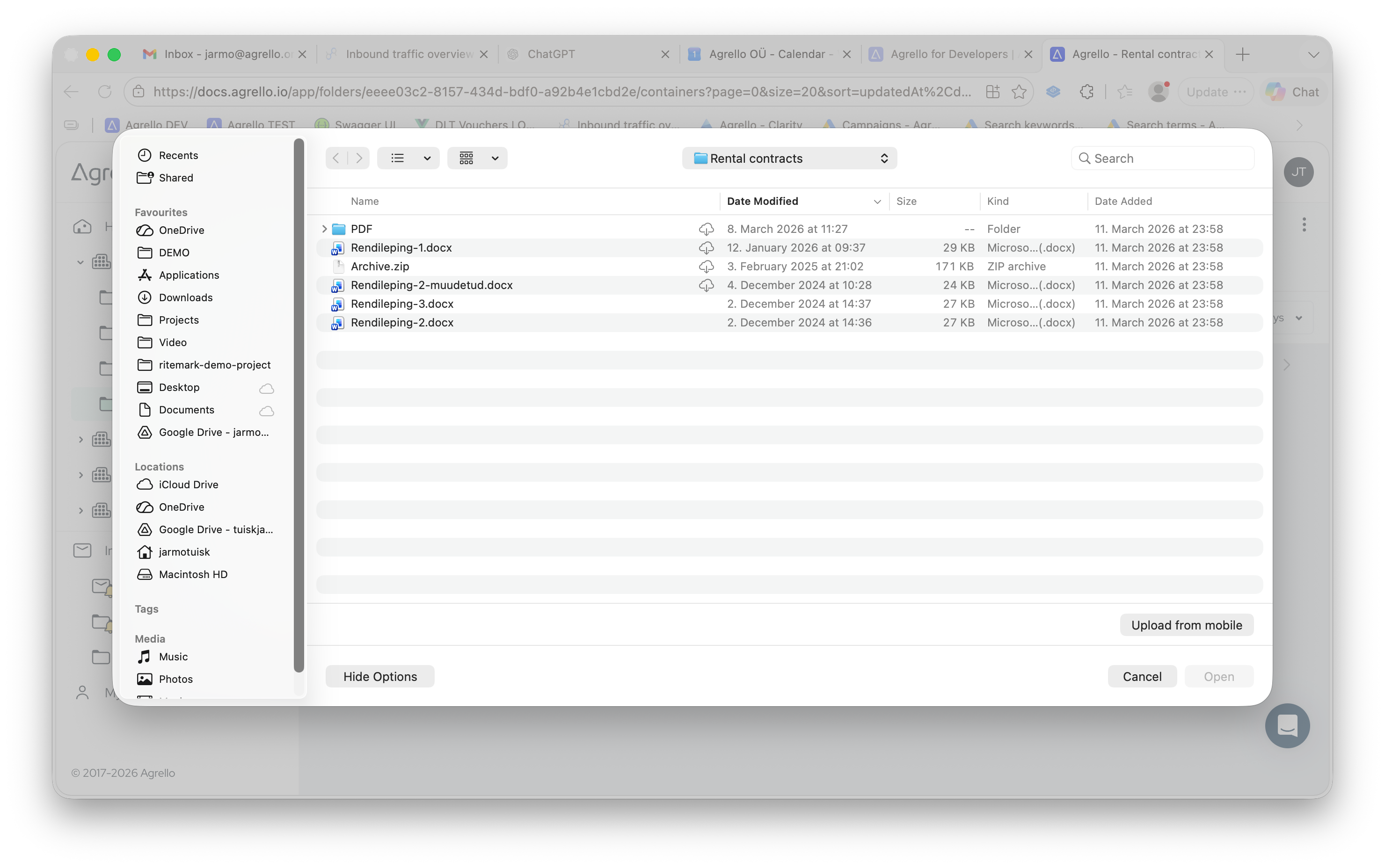
Pick the file from your cloud folder — when the system file picker opens, navigate to the synced cloud folder (OneDrive, Google Drive, or Dropbox) and select the document.
-
Add signers and send for signing. Add the parties and send the document out for signing with a qualified method — Smart-ID, Mobile-ID, ID-card, or eParaksts mobile.
-
Download the signed document back into the same folder. Once signed, download the finished file into the same synced cloud folder. The app syncs it to the cloud automatically, so the signed version is immediately in the right place and visible to your whole team.
Why this beats download-and-re-upload
With manual download-and-re-upload there's always a risk that an orphaned copy of the document is left in your computer's Downloads folder, and someone has to move the signed version back into the right cloud folder later. Working directly from a synced folder removes that step:
- One true copy — the file is always where it belongs, both before and after signing.
- No orphaned copies — no confusion about which version is final.
- Your team sees the result instantly — the signed document syncs to the cloud automatically and is visible to everyone.
Summary
Using Agrello with SharePoint, Google Drive, or Dropbox requires no separate integration — all you need is the provider's desktop app, which mounts your cloud as an ordinary folder on your computer. Once it's set up, the workflow is simple: pick a file from the synced folder, sign it in Agrello, and save the signed document back into the same folder.
If you don't have an Agrello account yet, start a free trial and try it with your own cloud folder.
Ready to get started?
Join Agrello and manage your contracts the smart way.