
Document Lifecycle Management: From Draft to Signed

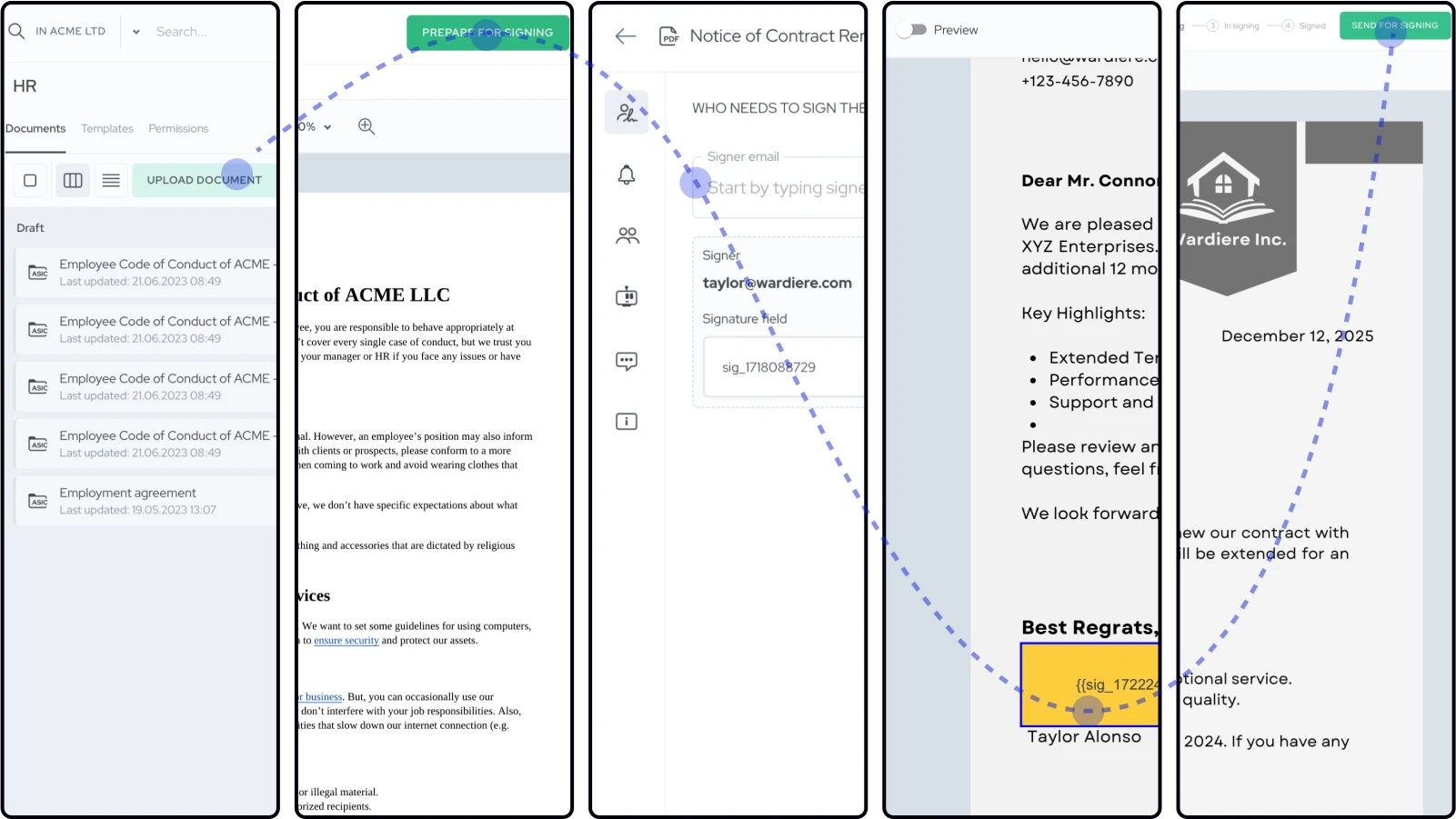
Master document lifecycle management from draft creation through signature collection. Learn to prepare documents, manage signers, send reminders, and track completion efficiently.
Every document moves through a clear lifecycle. Draft, prepare, send, sign—each state has specific actions available. Understanding this flow helps you manage contracts efficiently.
Document Lifecycle States
Documents progress through four states. Each state represents where the document sits in the signing process.
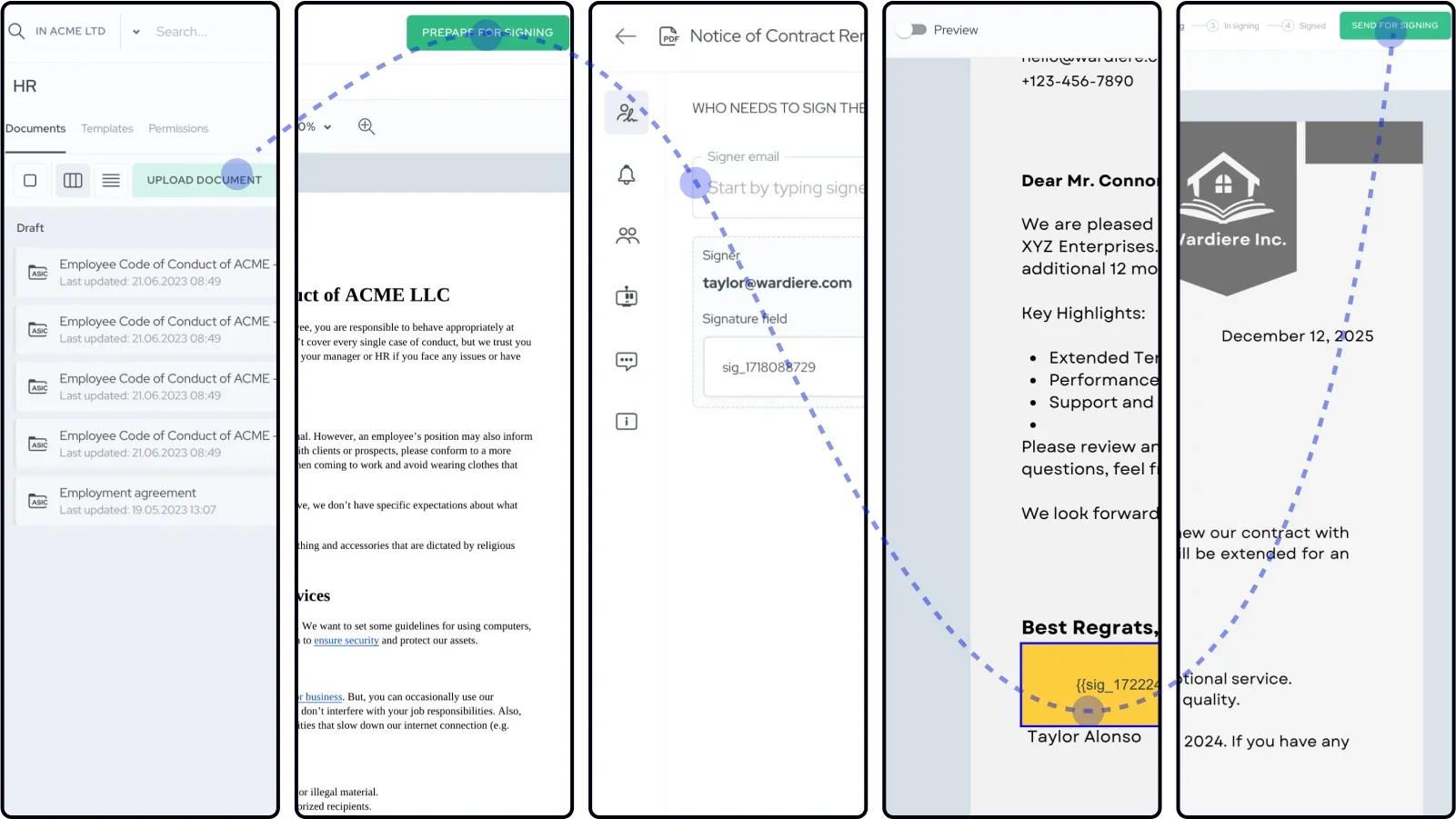
Draft: You're creating and editing the document. Files can change. Content is not final.
Preparing for Signing: You're adding signers and configuring the signing workflow. Files are locked but signer setup continues.
In Signing: Invitations sent. Waiting for signatures. You track progress and send reminders.
Signed: All signatures collected. Document immutable. Everyone has signed copies.
Draft State
This is where documents start. You upload files, edit content, and organize before involving signers.
What you can do:
- Edit document content (for editable templates)
- Upload or replace files
- Add or remove files (ASIC containers)
- Move documents between folders
- Delete documents if needed
- Set up fillable fields
When to use Draft: Work on contract terms. Finalize language. Ensure everything is correct before preparing for signatures.
Moving forward: Click "Prepare for Signing" when ready to add signers.
Preparing for Signing State
Files lock, but you configure who signs and how they sign.
Add signers: Enter email addresses of everyone who needs to sign. Add them one at a time or multiple at once.
Position signature fields (PDF only): Click on the document where each signer should sign. Place signature boxes precisely.
Set signature requirements: Choose if signers must use Qualified Electronic Signatures or if any signature method works.
Configure signing order:
- Parallel: All signers receive invitations simultaneously. Anyone can sign first.
- Sequential: Signer 2 gets invited only after Signer 1 completes. Enforces approval hierarchies.
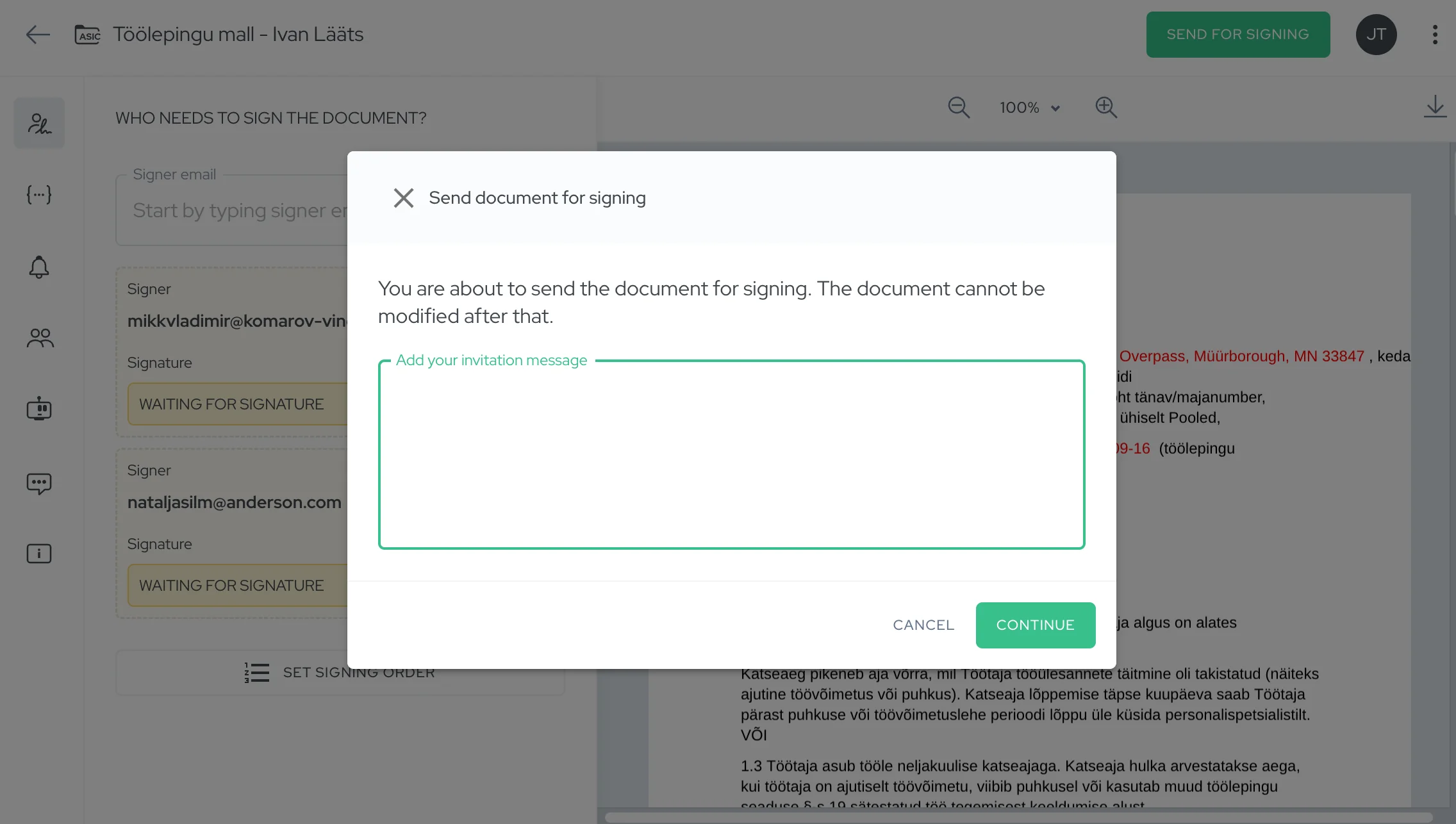
Customize invitation emails: Add a personal message explaining what needs signing and by when.
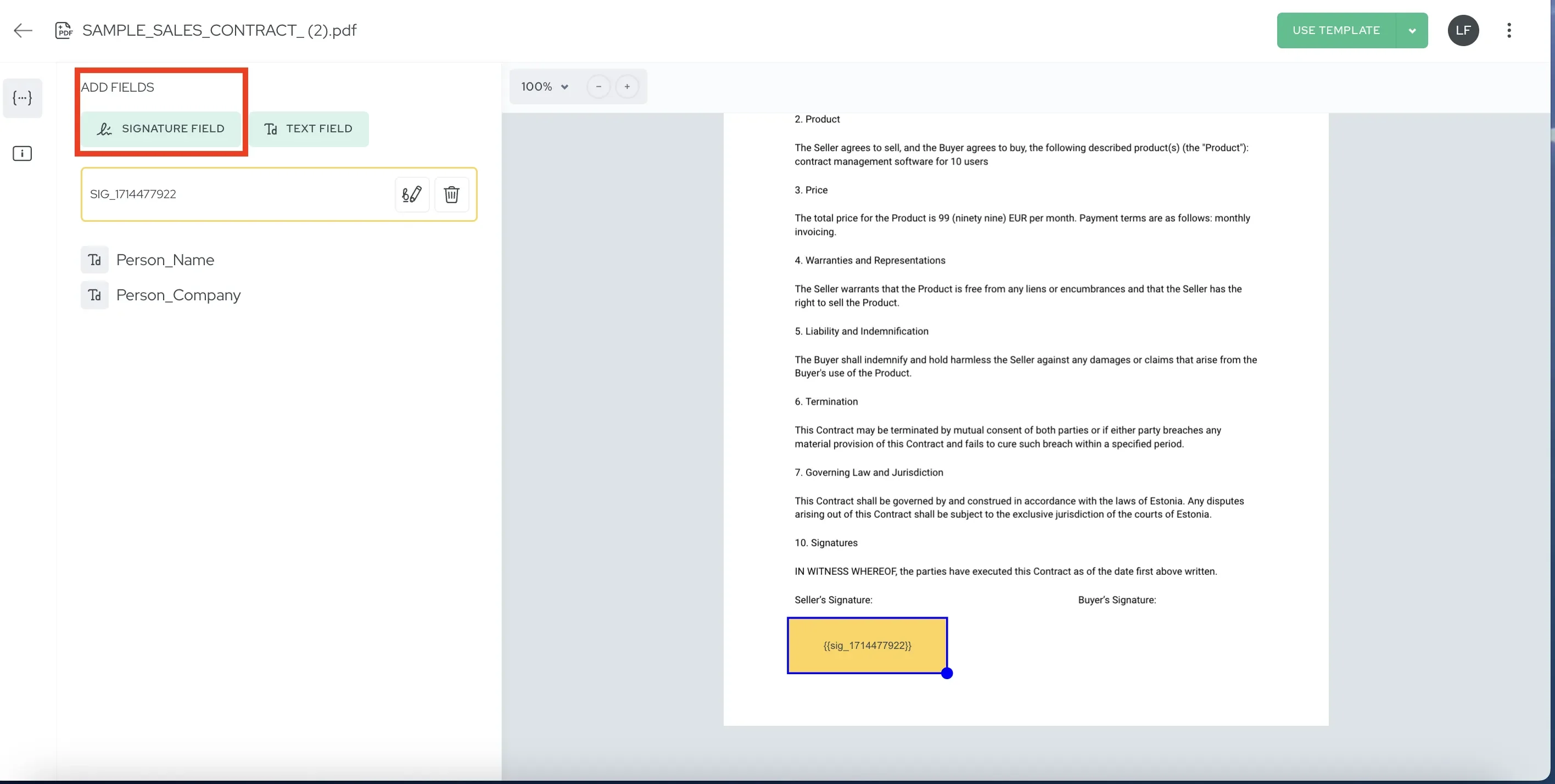
Reverting to Draft: Need to edit files? Click "Revert to Draft." Make changes. Then "Prepare for Signing" again.
Sending: Green "Send for Signing" button sends invitations to all signers immediately.
In Signing State
Invitations sent. Now you track progress and manage the process.
Tracking Progress
View individual document status: Open any document. See each signer's status—signed or waiting. View timestamps for completed signatures.
Kanban view shows pipeline: Documents appear in the "In Signing" column. Count tells you how many are awaiting signatures.
Progress indicators: "2 of 3 signed" shows exactly where you stand.
Sending Reminders
Individual reminders: Click the dropdown next to a pending signer's name. Select "Resend invitation." They receive a fresh email.
Bulk reminders: Switch to Kanban view. Select multiple "In Signing" documents with checkboxes. Click "Remind to sign" button at top. System sends reminders to all pending signers across selected documents.
Reminder timing: Wait 2-3 days before the first reminder. Follow up weekly for urgent documents. No system limit on reminder frequency—use judgment.
Adding More Signers
Realized someone else needs to sign? Click "Add signer" while In Signing. They receive an invitation immediately. Existing signatures stay valid.
Use case: Manager signs employment contract. You realize you need CEO approval too. Add CEO as additional signer. Manager's signature remains. CEO signs when ready.
Removing Invitations
Changed your mind about a signer? Remove their invitation if they haven't signed yet. Once they sign, removal is impossible—the signature is legally binding.
Signed State
All required signatures collected. Document becomes immutable.
What happens automatically:
- System generates final files (PDF, ASIC, or EDOC format)
- All signers receive signed copies via email
- Audit trail locks permanently
- Document moves to "Signed" column in Kanban
What you can do:
- Download signed documents
- View complete audit trail
- Export form data to CSV (if document had fillable fields)
- Move to different folders for organization
- Save as template for future use
- Mark contract status (Active, Expired, Terminated)
What you cannot do:
- Modify content
- Remove signatures
- Change signers
The immutability protects legal validity. Both parties signed this exact content. No changes allowed.
Kanban View Management
Agrello uses Kanban columns to visualize your document pipeline.
Four columns:
- Draft (documents being created)
- Preparing for Signing (adding signers)
- In Signing (awaiting signatures)
- Signed (complete)
Document counts: Each column shows totals. "11 of 11" means 11 documents in that state.
Moving documents: Documents progress automatically. Draft → click "Prepare" → Preparing. Preparing → click "Send" → In Signing. In Signing → all sign → Signed.
Visual workflow tracking: See at a glance where everything stands. Identify bottlenecks. Find stuck documents quickly.
Best Practices
Prepare thoroughly: Spend time in Preparing for Signing. Double-check signer emails. Verify signature field positions. Catch mistakes before sending.
Use bulk reminders: End of week, review "In Signing" column. Send bulk reminders to all pending documents. Saves clicking through each one individually.
Monitor regularly: Check Kanban view daily or weekly depending on volume. Follow up on documents stuck in signing for multiple days.
Add context to invitations: Custom messages in invitations help signers understand urgency and purpose. "Please sign this employment contract by Friday" is clearer than generic text.
Organize signed documents: Move completed contracts to appropriate folders—by year, by department, by contract type. Don't let everything pile up in one folder.
Sequential signing when hierarchies matter: Use sequential order for manager approvals before employee signatures. Prevents employees signing before manager review.
Track completion times: Notice which document types take longest to complete. Consider if preparation improvements (clearer instructions, better reminder timing) could help.
Common Issues
Signer says they never received invitation: Check their spam folder first. Verify email address is correct (no typos). Resend invitation from dropdown menu.
Document stuck in signing for weeks: Send reminder. If still no response, contact signer directly outside Agrello. Some people need phone calls, not just emails.
Need to change signer email: You can't edit existing signers. Remove the invitation (if they haven't signed). Add correct email as new signer.
Accidentally sent too early: No "undo send" button exists. Options: Ask signers to wait before signing while you prepare corrections, OR void document and create corrected version.
Signer signed with wrong signature method: If document requires QES but they used Agrello signature, the system blocks it automatically. Correct method required.
Multiple signature rounds needed: If document requires manager approval before HR signature, use sequential signing order. Manager signs first. HR receives invitation only after manager completes.
Workflow Efficiency Tips
Template everything repeatable: Employment contracts, NDAs, standard agreements—if you send them more than once, convert to templates. Saves "Draft" and "Preparing" time.
Bulk preparation: Need to send 20 employment contracts? Use bulk creation from template with Excel data. All 20 appear in "Preparing for Signing" ready to review and send.
Set signing order defaults: If your documents always follow the same pattern (employee signs, then manager, then HR), configure that sequence by default in templates.
Use folders strategically: Create folders by lifecycle stage or by department. Keep "In Signing" documents in active folders. Move "Signed" to archive folders.
Train team on reminder timing: Establish team norms—"We send first reminder after 3 days, second reminder after 1 week." Consistency improves completion rates.
Review audit trails when issues arise: If disputes or questions emerge, audit trail shows exactly what happened. Who accessed when, from what IP, using what signature method.