How to design a scalable sharepoint document management workflow

Content authorBy Toomas PihlPublished onReading time12 min read
Business team collaborating around a table during a strategy workshop with a whiteboard in a modern office

This article walks through the sequence for building a sharepoint document management workflow that holds up as volumes grow. Planning before configuration and information architecture come first, and query performance and permissions follow. Approval automation in Power Automate and electronic signatures through Agrello complete the sequence. Each step builds on the one before it.

Why the first decisions decide everything later

Most sharepoint document management problems start as planning problems, and they surface eighteen months later when a library crosses 5,000 items and views stop loading for everyone. By then the fix is a migration.

If you're moving off a shared drive or untangling a library that's become slow to filter and impossible to audit, the work is deciding what the content is and who owns it. How it will be found and where the security line sits belong in that same set of decisions. Those four answers drive the architecture. Everything else, from indexed columns to signature routing, is downstream of them.

Plan SharePoint document management

Before you create a single library, write down what you're actually storing. Count the documents you have today and estimate the annual growth rate. Note which types arrive in bursts. A contract library that gains 400 files a year behaves nothing like an invoice library that gains 400 a week, and they shouldn't share an architecture.

Ownership comes next, and it has to be a person or a role. Someone has to approve new content types and review permissions. Without a named owner, sharepoint document management decays quietly until nobody can explain why there are nine versions of the same policy.

Then map retrieval. Ask how people will look for a document in three years, because that question determines which fields become columns and which columns get indexed:

  • Which attributes will someone filter or search on (client, status)?

  • Which of those are required at upload and which can be filled in later?

  • Which must drive retention, and therefore come from a controlled vocabulary rather than free text?

Approval paths and retention requirements belong in this same document. Microsoft Purview applies retention policies at the site or library level, which means your retention rules need to line up with your container boundaries before you build them. Security boundaries finish the picture. One of the quieter sharepoint document management best practices is to treat every group of documents that needs a different audience as a candidate for its own container, because splitting later is expensive and breaking inheritance later is worse.

Build the information architecture

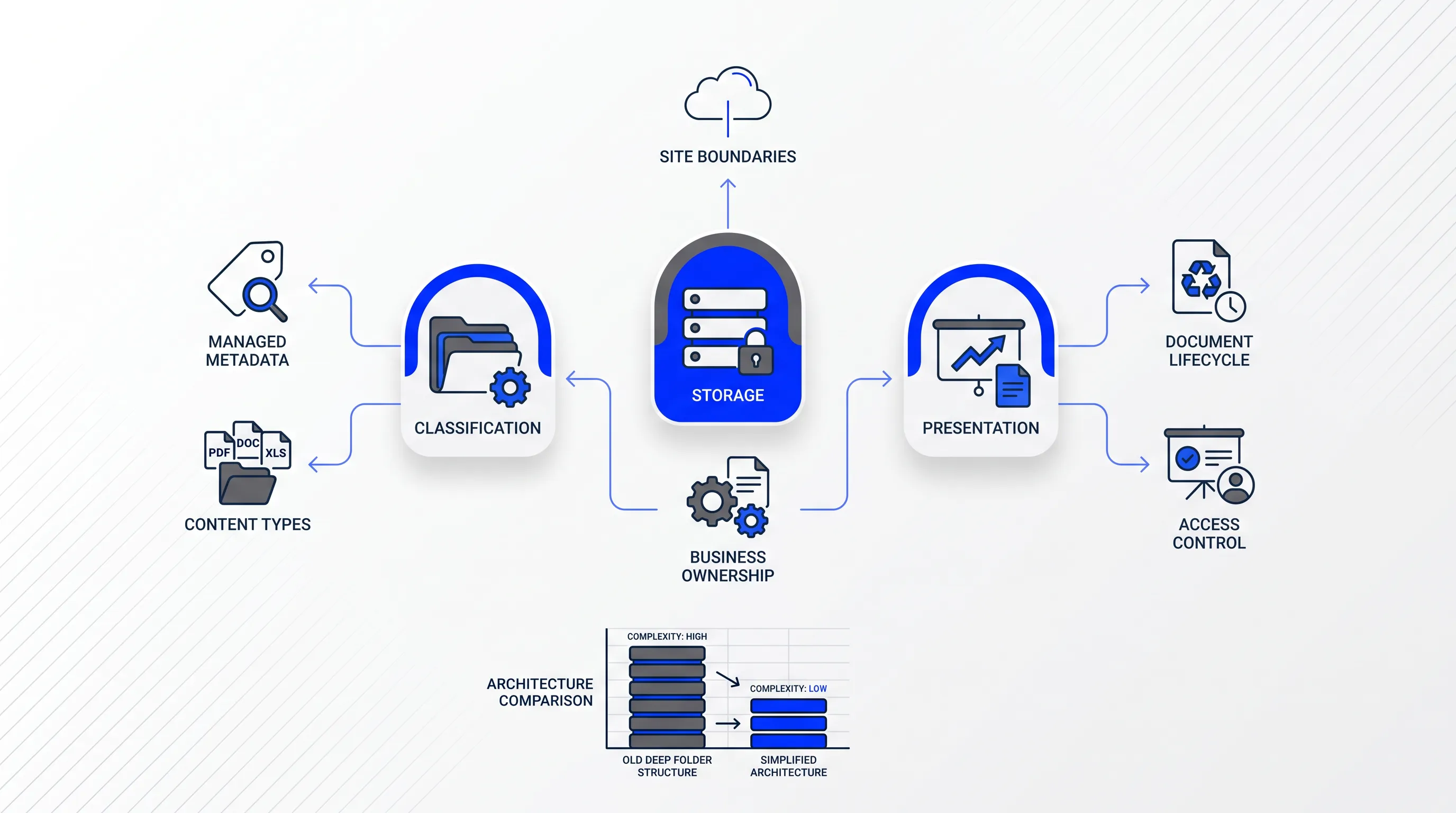
Modern flat-design diagram featuring rounded pillar icons for storage, classification, and presentation, with clean line icons and a mini bar chart.

Architecture when using sharepoint for document management is three decisions: where content lives and what it's classified as, along with how it's surfaced. Those are separate questions, and conflating them is where shared-drive migrations go wrong. The folder path on your old file server encoded all three at once, which is why it grew to eleven levels deep.

Modern SharePoint separates them on purpose. Sites and libraries handle storage and security, while content types handle classification and behaviour. Views handle presentation. Once you hold those apart, the architecture for using sharepoint for document management gets simpler rather than more complex.

Set site boundaries

Split sites by business purpose or ownership, and give each one a clear reason to exist. A legal contracts site and a finance records site have different owners and different retention clocks, so they shouldn't share a container just because the same twelve people touch both. Separation also keeps administrative work proportionate, since a permission change in one site doesn't ripple into the others.

Within a site, libraries do the same job at a smaller scale. One library per lifecycle stage works well when documents move through distinct states with distinct audiences. If you connect related sites through a hub site, you get shared navigation and cross-site search without merging the security models underneath.

The failure mode is the catch-all. A single "Documents" library that absorbs everything becomes slow to query, impossible to apply retention to selectively, and a permissions nightmare the moment one subfolder needs restricting.

Documents shouldn't be manual work.

Standardize how your business creates, manages, and signs recurring documents - without complex enterprise software.

Model content types

A content type bundles columns and a template into a reusable definition you publish once and consume everywhere. Define one per real document type: Supplier Contract, Purchase Order. Each gets its required columns and its default template, along with its retention attribute and the status values its workflow will set.

Classification is not location. A Supplier Contract stays a Supplier Contract whether it sits in the drafting library or the executed-agreements library, and its content type travels with it. That's what lets a single Power Automate flow handle every supplier contract in the tenant without hardcoding library paths.

Build the columns on managed metadata term sets wherever the values are controlled. Free-text fields drift within weeks, and among sharepoint document management best practices, a governed term store is the one that pays back fastest because it keeps filters and retention labels pointing at the same values.

Replace nested folders

Deep folder trees don't survive migration well. They encode one navigation path and hide documents from anyone who doesn't already know the path. Metadata columns plus filtered views give every person the slice they need from the same flat set.

Shallow folders still earn their place in two situations: when they carry a genuine operational unit such as one folder per matter or per project, and when they're the cleanest way to scope permissions for a self-contained group of files. Keep those. Delete the rest, and build views that filter on client or status instead. For teams used to using sharepoint for document management as a drive replacement, saved views with sensible defaults do more for adoption than any amount of training.

SharePoint document management performance

The 5,000 figure is misunderstood more than any other number in SharePoint. It's a list view threshold, which limits how many items a single query can process. The actual capacity is 30 million items per list or library.

So the design goal is to make sure no query ever has to evaluate more than 5,000 items. You get there with indexed columns and filters that hit those indexes first. SharePoint creates indexes automatically, and you can add an index to a column manually when a filter you rely on isn't covered.

A filter only works if the first clause it evaluates is indexed and selective. Filtering a 200,000-item library by Status equals Draft fails when 90,000 documents are drafts, even with Status indexed. Filter by a column that cuts the set hard, then narrow further. Among the sharepoint document management best practices worth enforcing at build time, this one is testable: create the volume you expect in three years and run every production view against it to see which ones throw the threshold error.

Default views matter more than custom ones because they're what loads when someone opens the library. Set the default to something scoped, like documents modified in the last 90 days, and let people switch to broader views deliberately.

Set scalable permissions

Permissions belong at the container. Assign access through SharePoint groups or Microsoft 365 groups at the site or library boundary, and let every file inside inherit from there. The Microsoft 365 group model has the advantage of carrying membership across Teams and the SharePoint site in one place.

Breaking inheritance on an individual file or folder creates a unique permission scope, and SharePoint caps those at 5,000 unique security scopes per list or library. The hard limit is the smaller problem. The real cost shows up in support: nobody can tell who has access to what, and audit reviews turn into file-by-file inspection. Microsoft's own permissions guidance is blunt about avoiding item-level permissions for exactly this reason.

When one group of files genuinely needs a different audience, move it to its own library or site rather than carving it out in place. That keeps using sharepoint for document management auditable, because access questions get answered by looking at a group membership list instead of reconstructing a permissions tree. Pair it with Purview audit logging so you have an evidence trail for who opened or edited a document.

Documents shouldn't be manual work.

Standardize how your business creates, manages, and signs recurring documents - without complex enterprise software.

Automate approval workflows

Before you open Power Automate, draw the approval on paper. You need the status values a document moves through and who reviews at each step. You also need what happens on rejection and how long the flow waits before reminding someone, plus what it does when the approver has left the company. Every one of those is a branch you'll otherwise discover in production.

In the flow itself, two things decide whether it scales. The first is retrieval: the SharePoint Get items and Get files actions return a limited page by default, so you set an OData filter query that hits an indexed column and enable pagination with a threshold above your expected record count. The second is iteration. The apply to each action supports concurrency control, and raising it speeds throughput while introducing race conditions if two branches can touch the same record. Know which one you're trading away. Both operate inside the documented Power Automate limits, which cap action counts and request rates per flow and per user.

Failure handling is not optional. Configure run-after conditions and scopes so a connector timeout routes to a notification instead of leaving a document stuck in Pending Review forever, which the error handling patterns documentation covers in detail.

SharePoint document management best practices

Six habits keep approval automation maintainable past the first year:

  1. Own flows with a dedicated service account, not an employee's identity, so connections don't break when someone changes roles.

  2. Use environment variables for site URLs and library names so the same flow runs in test and production without editing.

  3. Name flows and actions descriptively, because "Condition 7" tells the next person nothing.

  4. Set concurrency deliberately and document why you chose that number.

  5. Apply retry policies on connector actions that touch external services.

  6. Monitor run history on a schedule and alert on failure rates.

Solution-aware flows deployed through managed solutions make all of this repeatable, which is the point of application lifecycle management in the Power Platform. And when approval logic starts accumulating one-off conditions for individual departments, that's the signal to split it into separate flows rather than keep nesting.

Test flow scale

Test against the volume you expect in year three. Generate the records, then run the full set through the flow and time it. Flows that look instant against a small library behave differently when apply-to-each has 6,000 iterations ahead of it.

Then break it on purpose. Submit several documents at once from different people and reject a draft mid-cycle. Upload a file with a required metadata column left empty and reassign an approval to a substitute. Revoke a connection while a run is in progress. Each of those is a real Tuesday. Confirm that your pagination settings return every intended record and that no document gets processed twice, which is the specific failure that silent duplicate approvals come from.

Add Agrello signatures

Approval inside SharePoint tells you the organisation agreed to the document without producing a signature that holds up externally. That's where the workflow hands off: once the content type's status column flips to Approved, the flow sends the document to Agrello for signing.

Agrello is an Estonian document management and e-signing platform that supports national e-ID signing alongside its own international advanced electronic signature. Signature levels matter because eIDAS Regulation (EU) No 910/2014 distinguishes advanced and qualified signatures with different evidential weight, and in the United States the ESIGN Act sets the baseline for electronic records in interstate commerce. Pick the level the document type actually requires and record that choice in the content type definition.

The return path is where sharepoint document management either stays clean or falls apart. The completed agreement has to land against the right SharePoint record, not in a generic inbox, and it should arrive with the signing status and the audit trail written into columns on that item. Store the signed file as a new version or in a separate executed library. The right option depends on whether your retention clock starts at signature.

Validate and govern growth

Run this checklist before launch, and again every quarter:

  • Every library has a named owner and a documented purpose.

  • Required columns are populated on upload and bound to term sets where values are controlled.

  • Every production view has been tested against three-year volumes without hitting the threshold.

  • No file or folder carries unique permissions.

  • Flow run history is monitored with alerting on failure rate.

  • Signed documents return to the correct item with status and audit metadata attached.

Growth triggers should be numeric. Add an index when a new filter column appears in a view people use daily. Split a library when a view you can't scope further approaches 5,000 items in its result set. Create a new site when a group of documents needs an audience or a retention clock that doesn't match its neighbours. Add flow capacity when average run duration climbs past the window your approvers tolerate.

Reviewing volumes on a schedule is what separates sharepoint document management best practices from good intentions, because every one of these triggers is visible months before it becomes an outage. The teams that stay ahead of it are the ones using sharepoint for document management with a quarterly review already in the calendar.

Where to go from here

Build in order: plan, then architect. Index and permission come next, then automate and sign. Skipping ahead to the flow is tempting and it's how libraries end up unqueryable at 5,000 items.

Agrello handles the signing end of that sequence, with e-ID and advanced electronic signatures plus audit trails you can write back to the SharePoint item. Start a free trial on the Agrello platform, or talk to the team about fitting signatures into your sharepoint document management workflow.

Documents shouldn't be manual work.

Standardize how your business creates, manages, and signs recurring documents - without complex enterprise software.

Control external sharing at the tenant and site levels, then restrict anonymous links where they aren't required. Set guest access to expire and review external users on a fixed schedule. Record who approved each exception, because inherited internal permissions don't show whether an outside person still needs access.

Place unowned documents in a review queue instead of leaving them in active libraries. Ask each department to confirm ownership, purpose, retention needs, and access requirements by a fixed date. Assign a business owner or mark the file for disposition. This prevents abandoned content from becoming part of the permanent information set.

Archive a document when it no longer supports daily work but must remain available for legal, financial, or historical reasons. Move it to a restricted archive with read-only access and a defined review date. Delete it only after its retention period ends and the authorized owner approves disposition.

Track library view load time, search response time, flow duration, failed runs, and approval backlog against a baseline taken before launch. Review the same measures at each volume milestone, including the 95th percentile rather than only the average. This gives sharepoint document management teams early warning before users report failures.

Confirm that the approved file is final, the signer identities and signing order are correct, and each required signature field is mapped to the right person. Check the required signature level and return location before sending. If Agrello is the client platform, retain the completed file and audit record with the matching SharePoint item.

Schedule a Meeting

Book a time that works best for you and let's discuss your project needs.

You Might Also Like

Discover more insights and articles

Business professional explaining the three eIDAS electronic signature levels during a team meeting

How Do the Three eIDAS Signature Levels Differ?

The three levels differ in how much they prove. A simple electronic signature (SES) records that someone signed. An advanced electronic signature (AdES) ties that act to an identified signer and makes later changes detectable. A qualified electronic signature (QES) adds a qualified certificate and a certified device, which gives it handwritten-signature equivalence across the EU.

Team discussing file naming conventions for legacy document archives in an office

How to apply file naming conventions to legacy archives without breaking audit trails

This article sets out a controlled sequence for applying file naming conventions to archives of signed legacy contracts. It runs from scope definition through post-rename verification, so that signatures and chain-of-custody records survive the cleanup intact.

Title:
Which New-Hire Documents Should Be Prepared and Signed?

Meta description:
Organize your HR onboarding documents by stage and owner so you meet legal deadlines and prepare new hires on time.

A

Which New-Hire Documents Should Be Prepared and Signed?

New-hire paperwork splits into pre-start documents that set the terms and first-day documents that confirm identity and tax status, with post-start documents covering benefits and training. Each one needs a named preparer and a signer, with a deadline and a storage destination per location.

Business professional standing in a modern office, representing collaboration and document controls for legal, sales, and operations teams.

Which Collaboration Controls Do Legal, Sales and Ops Need?

Seven controls matter. They include defined roles and clause-level comments. Version history and review handoffs with visible approval status also matter, as do least-privilege access and event-based notifications. A documented signing-readiness check completes the set. Together they let the three departments contribute to the same agreement while only one person holds decision authority at each stage.