Overview
Learning how to add a digital signature to a PDF automatically can save your team hours of manual work while improving security and document reliability. Instead of printing, signing, scanning, and emailing files back and forth, businesses can use automated workflows to apply compliant digital signatures directly to PDFs in a faster and more controlled way.
This article explains why PDFs are the standard format for digital signing, how digital certificates and cryptographic verification work, and what you need to set up an automated signing process. It also covers long-term validation, common mistakes to avoid, and the key features to look for when choosing a tool to sign PDF online securely and at scale.
What Is Automatic PDF Digital Signing?
Automatic PDF digital signing is the process of applying a cryptographic digital signature to a PDF document without manual intervention. It uses a pre-configured digital certificate, applies the signature to designated fields, embeds a trusted timestamp, and includes long-term validation data so the signature remains verifiable indefinitely. This process is commonly triggered by APIs, document management workflows, or bulk-signing tools, and it complies with standards like PAdES and regulations like eIDAS and ESIGN.
Why PDFs Are the Go-To Format for Digital Signatures
Before setting up any automation, it helps to understand why nearly every signing workflow revolves around PDFs in the first place.
PDF is the universal standard for document exchange because it preserves formatting across every device and operating system. More importantly, the PDF specification (ISO 32000) has built-in support for digital signature fields, certificate embedding, and tamper-evident seals. No other common document format offers that level of native signing infrastructure.
The market reflects this dominance. The global digital signature market was valued at USD 7.13 billion in 2024 and is projected to reach USD 104.49 billion by 2032, growing at a staggering CAGR of 40.1%. Meanwhile, over 50% of businesses have already adopted electronic signatures for document processes, and that number keeps climbing.
Key reasons PDFs lead the pack:
-
Fixed layout prevents accidental content shifts after signing
-
Native signature fields let tools detect and fill them automatically
-
Certificate data embeds directly inside the file
-
Tamper detection is baked into the format's cryptographic layer
With that foundation clear, let's look at what actually happens under the hood when a PDF gets digitally signed.
How a Digital Signature on a PDF Actually Works
Understanding the mechanics helps you make smarter choices when selecting tools and configuring automation. A digital signature is not just an image of your handwriting pasted onto a page. It's a cryptographic operation. When you sign a PDF digitally, the software uses your private key (stored in a digital certificate) to create a unique hash of the document's contents. That hash gets encrypted and embedded in the PDF alongside your public certificate.
The Role of Digital Certificates
Your digital certificate is issued by a Certificate Authority (CA) and acts like a verified ID card. It links your identity to a public/private key pair. When someone opens your signed PDF, their reader checks the certificate against the CA's records to confirm two things:
To understand more about the trust workflow and the role of Certificate Authorities, see How Trust Works Online: Verified Digital Signatures.
What Makes This Different from a Simple E-Signature
A basic electronic signature, like typing your name or drawing with a mouse, proves intent but doesn't offer cryptographic verification. A digital signature adds that verification layer, which matters for compliance with regulations like eIDAS in Europe or ESIGN in the United States.
Knowing these mechanics, you're better equipped to set up automation that doesn't just speed things up but also keeps your documents legally sound.
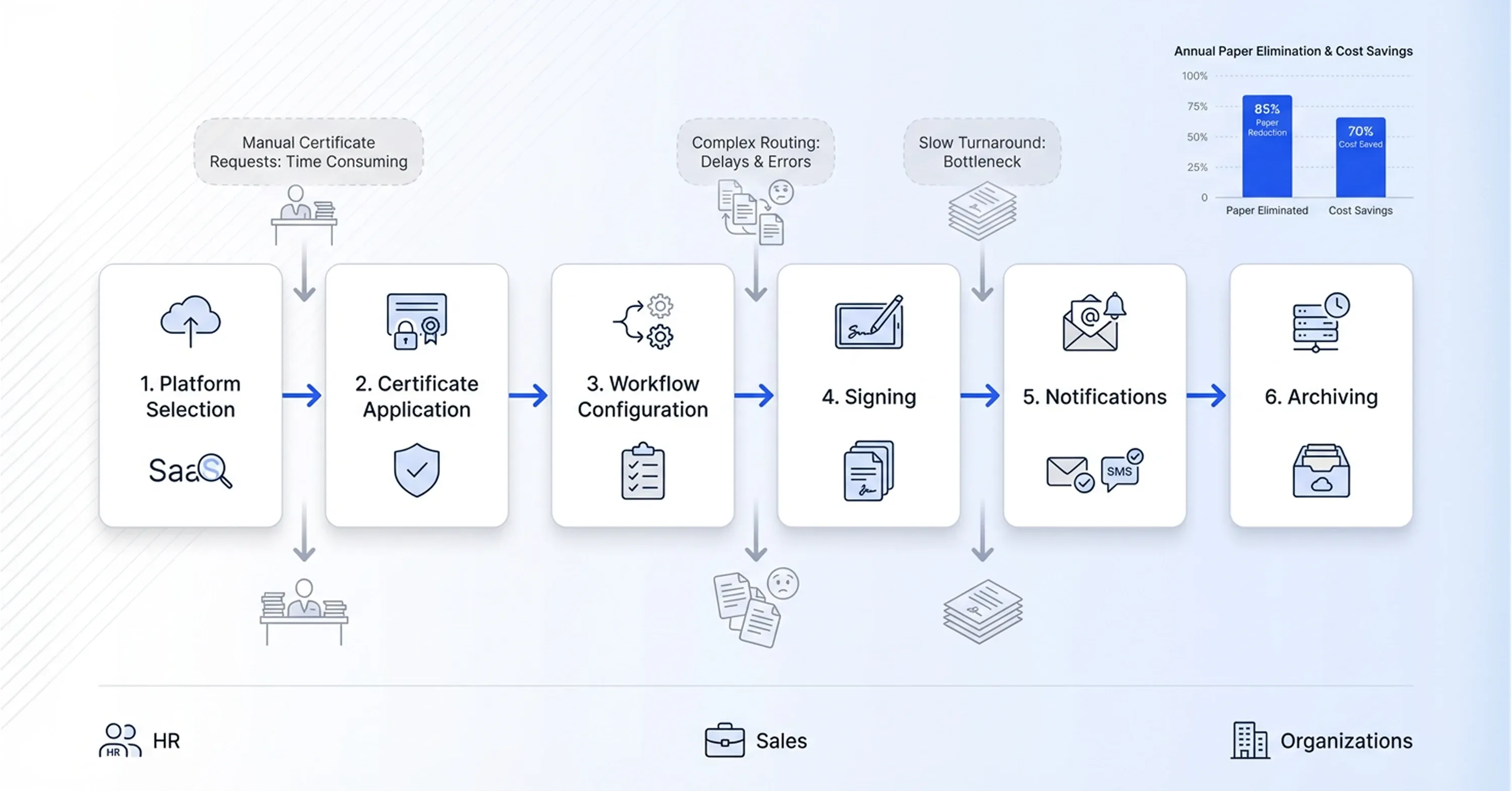
Step-by-Step: Setting Up Automatic PDF Signing

Here's where it gets practical. Automating your PDF signatures involves a few key decisions and configurations.
Step 1: Get a Digital Certificate
You'll need a certificate from a trusted CA. Options include:
-
Organization-level certificates issued by providers like DigiCert, GlobalSign, or Sectigo
-
Qualified certificates (required for eIDAS Advanced or Qualified Electronic Signatures in the EU)
-
Self-signed certificates for internal-only workflows (not recommended for external documents)
Most signing platforms let you upload your own certificate or use one they provide. Choose based on your compliance requirements and whether recipients need to verify your identity independently.
To learn more about digital signing certificates - how to choose, issue, and manage them - check out Digital Signing Certificates: What They Are & How to Issue One.
Step 2: Choose a Signing Platform That Supports Automation
Not every tool that lets you sign PDF online also supports automated workflows.
Look for platforms that offer:
-
API access for triggering signatures from your existing systems
-
Template-based signing fields that auto-populate
-
Bulk signing capabilities for high-volume scenarios
-
Certificate embedding and long-term validation support
Platforms like Agrello, for example, combine digital signature capabilities with workflow automation, making it straightforward for operations teams to route documents for signing without manual intervention at each step.
If you're evaluating and comparing platforms, the Best Digital Signature Tool of 2025 (Security-Focused Comparison) highlights leaders by security, automation, and compliance support.
Step 3: Configure Your Signing Workflow
Once your certificate and platform are in place, map out the signing flow:
-
Define which document types trigger automatic signing (contracts, offer letters, purchase orders)
-
Set signing order if multiple parties are involved
-
Configure notification rules so signers receive prompts via email or SMS
-
Enable automatic archiving of completed documents
For additional tips on integrating digital signing seamlessly with your everyday processes, read Harnessing e-Signatures for a Smooth Operational Flow.
The goal is to remove every manual touchpoint. When a new contract enters your system, the platform should apply the correct certificate, sign the designated fields, and store the finished file, all without someone clicking "sign" by hand.
In practice, the biggest delays rarely come from the signature itself. They usually happen earlier, when teams rely on someone to upload the correct PDF, choose the right signer, check field placement, and manually send reminders. That is where otherwise simple signing processes begin to break down.
This becomes especially visible when document volume increases. HR teams may need to send dozens of offer letters in a short period, while sales teams often work under pressure to finalize contracts before quarter-end. In those situations, even small manual steps create bottlenecks, missed follow-ups, and avoidable signing errors. A well-configured automated workflow removes that friction by standardizing routing, notifications, certificate application, and storage from the start.
This automation is what turns a five-minute task into a five-second process. And when you multiply that across hundreds of documents per month, the savings are enormous. One well-known case: the South Carolina Department of Health saved $4.0 million and eliminated 2.85 million paper documents per year after transitioning to electronic signatures.
Long-Term Validation: Keeping Signatures Valid for Years
Setting up automatic signing is only half the equation. You also need those signatures to remain verifiable long after the document was signed.
Long-Term Validation (LTV) ensures that a digital signature can be verified even after the signer's certificate expires or the CA goes offline. Without LTV, a signature that was perfectly valid in 2025 might show as "unknown" or "expired" when someone opens the PDF in 2030.
How LTV Works
When LTV is enabled, the signing tool embeds additional data into the PDF at the time of signing:
-
The full certificate chain (from your certificate up to the root CA)
-
A timestamp from a trusted Timestamp Authority (TSA)
-
Certificate revocation status (via OCSP responses or CRL data)
This creates a self-contained proof package inside the PDF. Anyone can verify the signature years later without needing to contact the original CA.
If your business needs more detail about the standards and formats used for long-term validation, see What are PAdES, XAdES, and ASiC signature formats?.
Why It Matters for Your Team
If your organization signs contracts, compliance documents, or HR records that need to hold up over time, LTV isn't optional. It's essential. Make sure your signing platform supports PAdES (PDF Advanced Electronic Signatures) with LTV, which is the gold standard for long-lived PDF signatures.
With long-term validation handled, your automated signatures stay trustworthy whether they're checked tomorrow or a decade from now.
Choosing the Right Tool to Sign PDF Online
The market is crowded, so here's a focused checklist to narrow your options quickly.
Must-have features:
-
Digital signature support (not just e-signature image overlays)
-
API or webhook integration with your document management system
-
LTV and timestamp embedding
-
Compliance with eIDAS, ESIGN, or your region's regulations
-
Audit trail with signer identity, IP address, and timestamp
Nice-to-have features:
Speed also matters. E-signatures enable up to 80% of agreements to be completed in less than one day, and 44% in under 15 minutes. The right tool should make that kind of turnaround routine, not exceptional.
Common Mistakes to Avoid When Automating PDF Signatures
Even with great tools, a few pitfalls can undermine your workflow.
-
Using self-signed certificates for external documents. Recipients won't be able to verify your identity through a trusted CA, which defeats the purpose.
-
Skipping timestamp embedding. Without a trusted timestamp, there's no independent proof of when the document was signed.
-
Ignoring LTV settings. Your signatures may show warnings in PDF readers years later if revocation data wasn't embedded at signing time.
-
Over-automating without human review. Fully automatic signing works for standard documents, but high-stakes contracts may still need a human approval step before the signature is applied.
-
Not testing across PDF readers. Verify that your signed PDFs display correctly in Adobe Acrobat, browser-based viewers, and mobile apps.
Another common issue in real deployments is assuming that automation alone guarantees a smooth process. In reality, many teams discover that poorly prepared templates, inconsistent field naming, or unclear approval logic create just as many problems as manual signing. The most effective workflows are usually the ones that combine automation with clear governance: standardized templates, defined signing roles, fallback rules, and regular testing across systems.
If you want additional guidance or a checklist on how to avoid gaps in security and certificate management, check out Are Your Digital Contracts Secure? A Look Into E-signature Security.
Avoiding these mistakes ensures your automation is both efficient and trustworthy from day one.
Conclusion
Automatic PDF signing is no longer a nice-to-have for modern teams. It is a practical way to eliminate repetitive admin work, speed up approvals, reduce costly errors, and make sure every signed document remains secure and verifiable over time. With the right certificate, platform, and validation setup, businesses can turn a slow manual process into a reliable workflow that supports both efficiency and compliance.
As digital document volume keeps growing, organizations that still depend on printing, scanning, and emailing are choosing friction over speed. Automated PDF signing gives teams a cleaner, faster, and more scalable way to handle agreements, approvals, and records. Once the process is in place, the old manual loop stops feeling familiar and starts feeling unnecessary.