Smiling professional woman signing a document digitally, illustrating how to create a digital signature in Microsoft Word

How to create a digital signature in Microsoft Word

Printing a document just to sign and scan it back is unnecessary. Microsoft Word lets you approve contracts and internal documents directly on your screen using built-in signature features. This guide shows how to create a digital signature in Word, add signature lines, apply document protection, and manage multiple signers. It also explains when Word’s native tools are enough and when a certified external solution is needed for legally critical documents.

Content authorBy Toomas PihlPublished onReading time9 min read

Understanding Digital Signatures vs. Electronic Signatures

Before you start clicking through menus, it is vital to know exactly what you are adding to your document. Microsoft Word distinguishes between a simple electronic signature and a certified digital signature. This distinction impacts the legal validity and security of your document.

An electronic signature can be as simple as typing your name or pasting an image of your handwritten signature. A digital signature is more advanced. It uses a cryptographic certificate to verify your identity and ensures that the document has not been altered after you signed it. If you need to prove who signed a file and that it remains original, you must use the digital method.

Most department-led teams need that extra layer of security for contracts. When you strictly follow the steps below, you add a layer of encryption that protects the file. This creates a tamper-evident seal that alerts future readers if anyone tries to change the terms after approval.

For a comprehensive breakdown of how electronic and digital signatures differ in security and compliance, see What’s the difference between electronic and digital signatures?

Method 1: Inserting a Visible Signature Line

The most common way to sign a Word document is by creating a signature line that looks like a traditional contract field. This provides a visual cue for where signatures are required and allows you to type instructions for the signer.

To begin this process, place the cursor where needed and select Signature Line from the Insert menu. This is usually found in the "Text" group on the right side of the ribbon. A dialog box will appear allowing you to configure the details of the signature block.

  • Suggested Signer: Type the name of the person who needs to sign.

  • Suggested Signer’s Title: Add their job title, such as "Marketing Manager" or "Director."

  • Suggested Signer’s Email: Input their email address for contact reference.

  • Instructions: Add a brief note, such as "Please review and sign before Friday."

After inserting the signature line, input the signer's name, title, and email address in the Signature Setup dialog box and click OK. A large X with a line next to it will appear in your document. This visual marker is ready for a digital certificate.

This setup phase is helpful for preparing templates. You can save a document with these lines pre-configured so that your team does not have to repeat the setup process for every new agreement. For a step-by-step guide on signing Word documents electronically, see E-signing of Word document.

How to Sign the Signature Line

Once the signature line is in place, the document is ready for approval. The signing process involves binding a digital certificate to that specific line. You must have a signing certificate installed on your computer to complete this step.

To execute the signature, double-click or right-click it and select Sign, then choose a signature image or type it. A "Sign" dialog box will pop up asking you to confirm the action.

  • Type your name: You can simply type your name next to the X.

  • Select an image: If you have a scanned image of your handwritten signature, click "Select Image" to upload it.

  • Touch screen: If you are using a tablet or touch-enabled laptop, you can draw your signature using a stylus or finger.

Regardless of the visual method you choose, Word uses your digital ID to lock the document. If you do not have a digital ID from a third-party certificate authority, Word may prompt you to get one or allow you to create a self-signed certificate.

Digital signatures require a signing certificate; self-signed certificates can be created for personal use within the machine. Be aware that self-signed certificates are generally trusted only on the computer that created them. If you send the file to a client, they might see a warning message stating the certificate is untrusted. For internal approvals, this is often acceptable.

If you want to create and personalize your electronic or digital signature before inserting it into Word or another document, check out Creating Digital Signature.

Method 2: Adding an Invisible Digital Signature

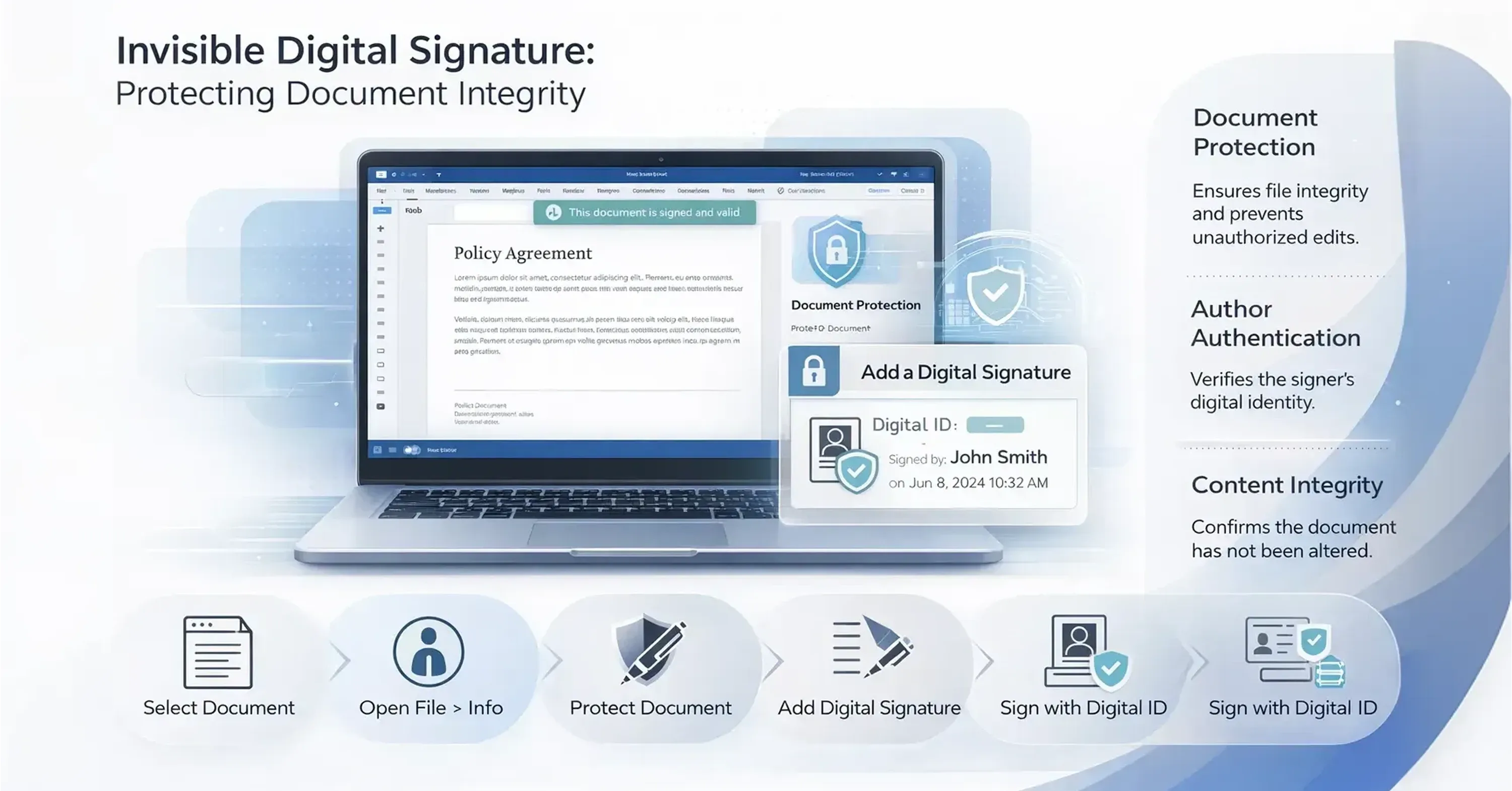
Diagram showing how invisible digital signatures protect document integrity through authentication, encryption, and tamper detection

Sometimes you need to guarantee the integrity of a document without cluttering the page with visual signature lines. An invisible signature protects the document's content and authenticates the author without changing the layout.

To apply this protection, go to File > Info > Protect Document > Add a Digital Signature, select Commitment Type, and sign. This process stamps the file metadata with your digital ID.

  • Click the File tab to open the backstage view.

  • Select Info.

  • Click Protect Document (the button with the padlock icon).

  • Choose Add a Digital Signature from the dropdown menu.

  • Select the purpose for signing, such as "Approved this document" or "Created and approved this document."

This method is excellent for finalizing policies or official statements where the visual format must remain pristine. Readers will see a notification bar at the top of the window indicating the document is signed and valid, providing assurance that the data has not been manipulated.

Managing Document Status After Signing

Once a digital signature is applied, the document changes state. It is no longer a draft; it is a finalized record. Word automatically enforces security measures to ensure the signature remains valid.

After digitally signing, the Signatures button appears and the file becomes read-only to prevent modifications. If anyone tries to type in the document or change formatting, Word will strip the digital signature immediately. This invalidation warns all future viewers that the unauthorized edit occurred.

If you need to make edits yourself, you must remove the signature first. You can do this by opening the document, clicking "Edit Anyway" in the notification bar, or right-clicking the signature line and selecting "Remove Signature." This action returns the document to an editable draft state, requiring you to re-sign it after changes are made.

Handling Multiple Signers on One Document

Business contracts often require approval from multiple stakeholders. You might need a department head, a project manager, and a finance director to all sign the same file. Word supports this workflow, but it requires careful setup.

Multiple digital signatures can be added to a Word document by creating visible signature lines for all approvers first. You cannot add a new signature line after the first person has signed, because adding the line counts as an edit. Edits break the previous signatures.

To do this correctly:

  1. Open the draft document.

  2. Insert a signature line for Person A.

  3. Insert a separate signature line for Person B.

  4. Insert a signature line for Person C.

  5. Save the document.

Once the layout is set, you can send the file to the first signer. After they sign, they forward it to the next person. You can add multiple digital signatures to a Word document to ensure authenticity of each signer, provided no other content is changed between signings. If Person B fixes a typo before signing, Person A’s signature will become invalid.

Limitations of Word’s Built-In Tools

While Word’s native tools are convenient for quick internal approvals, they have limitations for complex workflows. The reliance on local certificates creates friction when working with external parties.

If you send a document signed with a self-signed certificate to a client, their computer will likely flag it as "unverified" or "recoverable signature." This can look unprofessional and may raise legal questions about the validity of the contract. To avoid this, you usually need to purchase digital IDs from a Certificate Authority (CA), which can be costly and difficult for IT to manage across a whole company.

Furthermore, the "read-only" nature of signed files makes collaboration difficult. If a client wants to negotiate a single clause, the entire signature chain breaks, and the process restarts from zero. This rigidity often leads teams to look for more flexible platforms.

If you’re exploring advanced options, see the detailed comparison guide Best Digital Signature Tool of 2025 (Security-Focused Comparison).

When to Use Dedicated Signing Solutions

For mid-market teams handling a high volume of contracts, moving beyond Word’s built-in features is often necessary. Dedicated contract management platforms allow you to upload Word documents and send them for signature without worrying about installing local certificates on every employee's machine.

Platforms like Agrello allow you to create digital signature Word workflows that are cloud-based. This means you can track who has opened the file, who has signed, and who is holding up the process. Unlike Word’s static file approach, these tools provide a dashboard for managing the lifecycle of the agreement.

Using a specialized tool also solves the "untrusted certificate" issue. The platform acts as the trusted authority, providing a secure audit trail that holds up in court. If your team frequently manages employment contracts, vendor agreements, or sales proposals, integrating a solution like Agrello ensures you maintain speed and compliance without the technical headaches of managing individual digital IDs.

For a detailed workflow, review step-by-step advice in How to Use a Digital Signature Generator (Free & Paid Tools).

To create a digital signature in Microsoft Word: Place your cursor where the signature should go, click the Insert tab, and select Signature Line from the Text group. Fill in the signer's details in the setup box and click OK. Double-click the X on the signature line, select your certificate, and click Sign to lock the document.

Conclusion

Learning how to create a digital signature in Microsoft Word allows your team to approve documents faster and more securely. By using signature lines and understanding the role of digital certificates, you can move away from the slow cycle of printing and scanning. For internal memos and simple approvals, Word’s built-in tools are often sufficient.

However, as your contract volume grows or when you deal with external clients, keep the limitations of self-signed certificates in mind. Whether you stick with Word’s native features or upgrade to a platform like Agrello for smoother management, digitally signing your documents is a necessary step toward a more efficient, modern office.

An electronic signature is a broad term that includes any electronic mark, like typing your name. A digital signature is a specific type of electronic signature that uses encryption technology and digital certificates to authenticate the signer's identity and ensure the document has not been altered.

Word locks the document to protect the integrity of the signature. If the document allowed editing after it was signed, the signature would no longer certify the current content. Any change made to the text automatically invalidates the existing digital signatures.

Yes, you can. When you double-click the signature line to sign, the dialog box offers an option to "Select Image." You can upload a scan or photo of your handwritten signature. However, for it to be a true digital signature, this image must still be backed by a digital certificate installed on your computer.

To remove a signature, right-click the signature line and select "Remove Signature." Alternatively, if you try to edit the document, Word will warn you that editing will remove the signatures. Clicking "Edit Anyway" will strip all signatures from the file and allow you to make changes.

For internal use, you can create a self-signed certificate directly within Microsoft Windows at no cost. However, for external contracts or official documents sent to clients, it is recommended to purchase a digital ID from a trusted third-party Certificate Authority so the recipient's computer verifies the signature automatically.

Schedule a Meeting

Book a time that works best for you and let's discuss your project needs.

You Might Also Like

Discover more insights and articles

Close-up of professional woman with text “How do electronic signatures work?” representing digital signing process and e-signature technology

How do electronic signatures work?

You have probably signed a digital document recently - clicked a link, typed your name, or scribbled a signature and pressed “Finish.” It felt quick and effortless. But for managers responsible for important contracts, that simplicity can raise a key question: what actually happened behind the scenes? This article explains how electronic signatures secure documents, verify identity, and create a legally reliable record - in clear, non-technical terms.

Professional woman using digital signature software to quickly sign and send documents online

What’s the fastest way to sign and send documents online?

Paperwork bottlenecks quietly drain productivity in growing companies. If you still print, sign, scan, and email documents, you are wasting hours on a process that should take seconds. This guide shows how to modernize approvals with secure digital tools, mobile signing, and an automated digital signing workflow that works without heavy IT support.

Business professionals discussing document security as AI tools detect and prevent forged digital signatures

How can AI detect and prevent forged digital signatures?

You have likely signed dozens of contracts this year without touching a pen. While this speed is great for business, it creates a nagging worry for department heads and process owners. If you can sign a document in seconds with a click, how hard is it for a fraudster to do the same in your name? This article breaks down exactly how artificial intelligence acts as a digital gatekeeper for your contracts. We will look at how AI moves beyond basic security checks to analyze behavior, spot visual tampering, and verify identity in real time. You will learn how modern tools protect your HR, Sales, and Operations documents without requiring a massive IT overhaul.

A professional stands before a whiteboard diagram with text explaining PAdES, XAdES, and ASiC digital signature formats

What are PAdES, XAdES, and ASiC signature formats?

You may have seen unfamiliar acronyms like PAdES, XAdES, or ASiC when signing documents digitally. This guide explains the three main EU e-signature formats in simple terms and shows when each should be used. By the end, you’ll know how to choose the right format to keep your contracts compliant, secure, and future-proof.