Smiling professional with overlay text about AI tracking document signing and approval activity

How can I insert a digital signature into an email?

Sending an important contract or approval via email requires more than just a polite sign-off. You need a reliable way to prove your identity and protect the contents of your message. How can I insert a digital signature into an email?

Content authorBy Toomas PihlPublished onReading time12 min read

Overview

This guide walks you through the exact steps to digitally sign your emails and attachments. You will learn the difference between standard email footers and cryptographically secure digital signatures. We will also cover how to apply these security measures to your daily workflows.

By the end of this read, HR specialists, operations managers, and sales coordinators will know exactly how to secure their outgoing messages. Let us look at the easiest ways to build trust in your internal and external communications.

What is a digital signature for an email?

Before you add a signature to your email, it helps to know exactly what kind of signature you need. Many people confuse everyday email sign-offs with legally binding digital signatures.

A true digital signature is a cryptographic code attached to an email or document that verifies the sender's identity and ensures the message has not been altered in transit.

  • Standard email signatures provide contact information at the bottom of a message.

  • Digital signatures encrypt the data to prove authenticity.

  • Electronic signatures are visual representations of a person's name on a document.

To further clarify the terminology and choose the best approach for your workflow, see What’s the difference between electronic and digital signatures?.

Understanding these differences saves you from using the wrong tool for an important contract. Next, we will explore exactly how the technology behind these signatures actually functions.

How cryptographic keys work

The technology behind these secure messages might sound complex, but the basic concept is quite simple. The system uses a pair of mathematical keys to lock and unlock your data.

  • Your private key stays hidden safely on your computer or secure platform.

  • Your public key travels with your email for the recipient to use.

  • The recipient software uses your public key to verify that your private key signed the message.

This mathematical relationship guarantees that nobody can forge your approval. Now we will look at how specific departments benefit from this level of security.

Why growing teams rely on secure communications

Department managers handle highly sensitive information every day. A simple typed name at the bottom of an email does not offer enough protection for these vital assets.

  • HR teams process payroll details and confidential employee records.

  • Sales coordinators send final pricing agreements and vendor contracts.

  • Operations professionals approve budgets and resource allocations.

Adding a layer of cryptographic security prevents spoofing and tampering. It stops unauthorized users from intercepting an attachment and changing the terms before the recipient opens it.

This extra security reduces the risks associated with manual communication. Now, let us look at how you handle standard contact signatures before moving to encrypted files.

Protecting internal and external workflows

Growing companies face unique challenges when managing communication across multiple departments. You need a unified approach to keep your operations running smoothly.

  • A clear security protocol keeps your brand image highly professional.

  • Consistent signatures help external partners verify your team members instantly.

  • Secure attachments prevent costly legal disputes over altered contracts.

Standardizing your email process eliminates confusion for everyone involved. The first step in this process is configuring your basic visual sign-off.

Adding a standard visual signature in Gmail

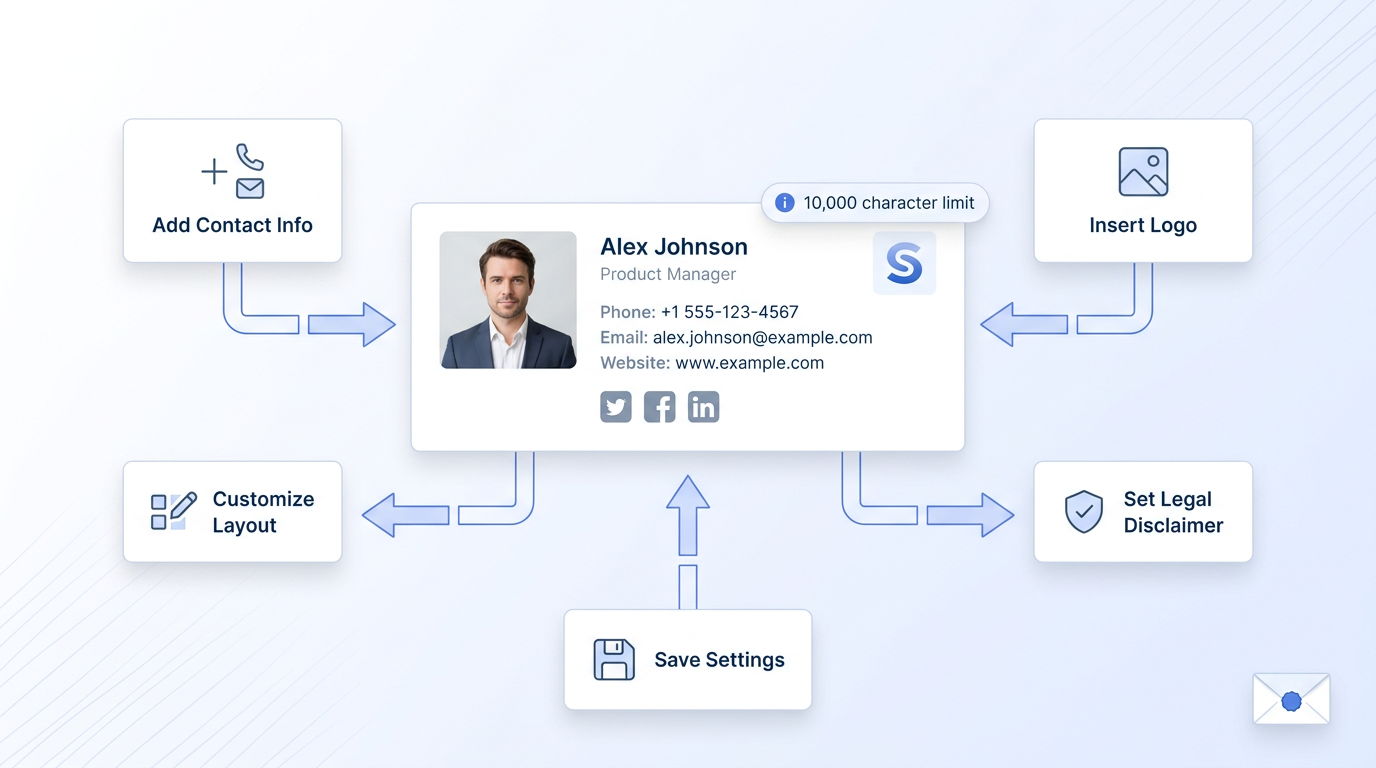
SaaS UI illustration featuring a central Gmail signature mockup with steps for customization, set against a pale blue gradient background.

Most professionals start by setting up a visual signature block in their email client. This provides your title, phone number, and company logo to anyone who receives your message.

If you want suggestions for branding, layout, and optimizing cross-device presentation, see How to Create a Professional E-Signature Design.

Let us focus on Gmail as the primary example for everyday correspondence. The process requires just a few clicks inside your account settings.

  • Open Gmail and click the gear icon in the top right corner.

  • Select the button to view all settings.

  • Scroll down the General tab until you find the Signature section.

  • Click the button to create a new signature and give it a name.

  • Type your details into the formatting box.

Saving these settings ensures your contact details look professional on every outbound message. However, you must carefully manage the size of the block you create.

Keep your visual limits in mind

Gmail makes it incredibly simple to attach your contact details automatically. You can even set up different blocks for new emails and replies.

  • Add a professional headshot to personalize your message.

  • Include a link to your company website.

  • Add a brief legal disclaimer if your industry requires one.

You must watch your space limits when adding images and text. As a strict rule, Gmail allows up to 10,000 characters in an email signature, including images which count toward the limit.

Staying within these limits ensures your emails load quickly on all devices. A visual block is great for contact info, but you might need different steps if you use Microsoft products.

How to configure standard signatures in Microsoft Outlook

Millions of administrative professionals use Microsoft Outlook for their daily correspondence. Outlook provides robust tools for creating consistent visual sign-offs.

Setting up your contact details in Outlook takes only a few minutes. You can easily create a professional block that includes your title and company branding.

  • Open a new email message window.

  • Click the Signature button in the top ribbon menu.

  • Select Signatures from the drop-down list.

  • Click New and type a name for your contact block.

  • Enter your details, links, and company logo.

Corporate IT teams often manage these settings globally to ensure brand consistency. They might push a standardized template to your computer automatically.

Having a unified look builds credibility with external clients and vendors. To maintain flexibility, Microsoft Outlook allows multiple signatures for different email accounts.

Managing Outlook settings effectively

The desktop version of Outlook offers a dedicated menu for managing these visual footers. You can assign different blocks to different email accounts if necessary.

  • Assign a formal signature for your primary business account.

  • Create a shorter version for quick internal replies.

  • Set up a specific block for your customer support alias.

Customizing these options helps you communicate appropriately with different audiences. Next, we will look at how Apple users handle this same configuration.

How to configure standard signatures in Apple Mail

Creative teams and independent contractors frequently rely on Apple Mail for their business communications. The setup process here is just as straightforward as it is on a PC.

Apple Mail allows you to drag and drop images directly into your contact block. This makes it incredibly easy to format your details exactly how you want them.

  • Open the Mail app and click Mail in the top menu bar.

  • Select Settings and navigate to the Signatures tab.

  • Choose your email account from the left column.

  • Click the plus icon to create a new block.

  • Type your information into the middle pane.

You can check the box that automatically matches your signature font to the default message font. This keeps your entire email looking cohesive and professional.

Setting up these visual elements ensures your recipients always know exactly how to contact you. For added convenience, Apple Mail allows iCloud synchronization for signatures across all your devices.

Troubleshooting Apple Mail formatting

Sometimes your visual block might not look exactly right when you send a test message. A few simple adjustments will fix most formatting issues.

  • Ensure your images are sized correctly before dragging them into the box.

  • Use simple fonts that display clearly on both Mac and Windows computers.

  • Avoid using complex HTML tables that might break on mobile screens.

Keeping your design simple guarantees a flawless presentation every time. Now let us transition from basic visual blocks to highly secure encrypted messages.

Signing the email body using S/MIME certificates

Sometimes you need to encrypt the actual text of the email message rather than just an attachment. This requires a specific security protocol known as S/MIME.

S/MIME stands for Secure/Multipurpose Internet Mail Extensions. It uses a pair of digital keys to encrypt the message and verify your identity as the sender.

  • You must purchase an S/MIME certificate from a trusted authority.

  • You install this certificate directly into your computer or browser.

  • You configure your email client to attach this certificate to every outgoing message.

For a complete walkthrough of setting up S/MIME in both Gmail (Workspace) and Outlook, see How to Add a Digital Signature in Email (Gmail, Outlook).

This ensures nobody can read the email text while it travels across the internet. It provides complete privacy for highly sensitive internal communications.

Setting up S/MIME in your mail client

Once you have your certificate, you have to link it to your specific email address. The steps vary slightly depending on your operating system and email provider.

  • Open your email client security settings.

  • Locate the encryption or S/MIME preferences.

  • Import the digital certificate file you downloaded from the authority.

  • Check the box that says to digitally sign all outgoing messages.

While S/MIME protects the email body, it can be complex to deploy across a large organization. Everyone needs their own individual certificate to make the system work.

Because of this complexity, many companies prefer to focus on securing the attachments instead. Let us review how to protect the actual documents you send.

Securing email attachments with true digital signatures

The most crucial part of any important email is usually the attachment. Whether it is an employment offer or a vendor agreement, the document itself requires a verifiable digital signature.

You cannot rely on the email client alone to protect a PDF or Word file. You must sign the document securely before you attach it to your message.

  • Upload your PDF contract to a secure platform.

  • Add your cryptographic signature using your verified identity.

  • Download the secured file to your computer.

  • Attach the protected document to your outgoing email.

If you want a more in-depth guide for automating PDF digital signatures and handling documents at scale, see How to Add a Digital Signature to a PDF Automatically.

This approach builds immediate trust with external partners. It also keeps your internal approvals consistent and highly secure.

Securing the attachment guarantees that your critical data remains safe regardless of how the email travels. Thankfully, Agrello ensures highly secure digital signatures for all your important files.

Using Agrello to sign documents securely

This is where specialized platforms step in to handle the cryptographic heavy lifting. They ensure your files remain completely tamper-proof from the moment you hit send.

Using a dedicated platform like Agrello gives you a legally robust way to apply a digital signature to your documents. Agrello creates a secure trail of evidence that proves who signed the file and exactly when they did it.

  • Invite multiple team members to sign the document in a specific order.

  • Track the progress of the document directly on your dashboard.

  • Generate a comprehensive audit trail for legal compliance.

Managing your signatures through a central platform keeps your operations incredibly organized. Next, we will look at how your recipients verify the files you send them.

How to verify a digitally signed email or attachment

Sending a protected file is only half the process. The person receiving your message needs to know how to confirm the signature is valid.

Most modern software handles this verification automatically. Your recipient does not need to be a technology expert to trust your communication.

  • Microsoft Word shows a small badge icon at the bottom of the screen.

  • Standard email clients show a lock icon next to S/MIME encrypted messages.

  • Dedicated signature portals offer instant verification tools upon upload.

If your team needs step-by-step instructions or troubleshooting for signature authenticity, see How to Verify If a Digital Signature Is Authentic.

If the document was changed after you signed it, the software will immediately flag the file as invalid. This alerts the recipient that someone tampered with the contents.

Verification ensures complete transparency between you and your business partners. As an example, Adobe Acrobat displays a blue ribbon for valid signatures automatically when you open a secured PDF.

What recipients see when they open your file

Your partners will immediately notice the difference when you send a secured file. The software provides visual cues that build immediate trust.

  • A green checkmark usually indicates a verified and trusted identity.

  • A yellow warning triangle suggests the certificate is unknown.

  • A red X means the document was definitely altered after signing.

Educating your partners on what to look for makes the entire process smoother. Let us review the most common questions people ask about this workflow.

Conclusion

Email is no longer just a communication tool—it’s a point of legal and operational risk. A simple text sign-off doesn’t prove identity, protect your content, or stand up in a dispute. What does is a combination of structured signatures, verified identity, and tamper-proof documents. By separating visual email signatures from true digital signatures, you gain control over both professionalism and security. Set up consistent signature blocks across your team, use S/MIME where message-level encryption is required, and most importantly, ensure that every critical attachment is digitally signed and verifiable.

The teams that move fastest today are not the ones sending more emails they are the ones sending trusted emails. When every contract, approval, and document you send is secure, traceable, and legally defensible, you eliminate friction, reduce risk, and close decisions faster.

That’s the standard modern businesses operate on and it’s the standard your email workflow should meet.

You can securely sign your attachment using a dedicated platform like Agrello before you draft your email. You simply upload the file, apply your verified cryptographic signature, and then attach the protected document to your outgoing message.

An image of your handwriting is just a visual electronic signature, not a secure digital signature. It provides no cryptographic proof of your identity and someone can easily copy it from your document.

Most standard email providers automatically recognize and verify S/MIME encrypted messages. If you receive a securely signed PDF attachment, popular software like Adobe Acrobat will verify it automatically.

Google limits your visual contact block to ensure emails load quickly and format correctly on mobile devices. You must keep your text and images within the 10,000-character limit to save your settings successfully.

If a user alters a document after you apply a cryptographic signature, the signature immediately breaks. Any software reading the file will flag it as invalid and warn the recipient about the tampering.

Schedule a Meeting

Book a time that works best for you and let's discuss your project needs.

You Might Also Like

Discover more insights and articles

Close-up portrait of a woman with blue eyes looking upward beside automation-themed graphics

What’s the difference between typed, drawn, and scanned signatures?

Processing contracts and employee onboarding forms often leaves teams wondering which signature format protects the company best. Choosing the wrong method can expose your business to compliance failures, forged documents, and wasted administrative time. You need a clear understanding of your options before you finalize your next big agreement.

smiling man with overlay text about AI tracking document signing and approval activity

How Can AI Track Document Signing and Approval Activity?

You sent a contract out for signatures three days ago. Now you're checking email threads, pinging coworkers on Slack, and scrolling through a shared folder trying to figure out who actually signed. Sound familiar?

close-up portrait of woman with text overlay about digital signature examples including simple advanced and qualified types

Digital Signature Examples (Simple, Advanced, Qualified)

Ever signed a contract by typing your name into a PDF and wondered if that actually holds up legally? You're not alone. Most teams handle dozens of signed documents each week, yet few people know which type of digital signature is appropriate for each situation.

smiling professional in an office with whiteboard sketches, alongside bold text explaining how to add a digital signature to emails in Gmail and Outlook

How to Add a Digital Signature to Your Emails (Gmail, Outlook)

You just sent a contract to a client, and they reply asking, "How do I know this actually came from you?" It's a fair question. Without a digital signature in email, there's no cryptographic proof that your message is authentic or untampered.