What You'll Learn in This Guide
This article walks you through the exact steps to confirm whether a digital signature is authentic, even if you have zero technical background. You'll learn what certificates, timestamps, and trust chains actually mean in plain language, and you'll see how to check each one using tools you probably already have on your computer.
By the end, you'll be able to open any digitally signed document, run through a quick verification checklist, and confidently tell your team whether that signature holds up. Let's get into it.
Understand What Makes a Digital Signature "Authentic"
Before clicking anything, it helps to know what you're actually checking. A digital signature isn't a scanned image of someone's handwriting. It's a piece of cryptographic data attached to a document that proves two things:
Think of it like a tamper-evident seal on a medicine bottle. If someone opens the bottle, the seal breaks. A digital signature works the same way: if someone changes even a single character in the document after signing, the signature breaks.
If you want a deeper understanding of what makes digital signatures secure, including hashing, encryption, and verification using public key infrastructure, check out How do electronic signatures work?.
The Three Pillars of Verification
Every authentic digital signature rests on three pillars:
-
Digital certificate: Issued by a trusted authority, it links the signer's identity to a cryptographic key.
-
Timestamp: Records exactly when the signature was applied, proving the certificate was valid at that moment.
-
Trust chain: A hierarchy of certificates leading back to a root authority your software already trusts.
When all three check out, you can be confident the signature is legitimate. The next step is learning where to find these details in your document viewer.
Open the Signature Panel in Your PDF Reader
Most signed documents arrive as PDFs. Adobe Acrobat Reader, Foxit Reader, and most modern PDF tools have a built-in signature panel that does the heavy lifting for you.
Here's how to find it in Adobe Acrobat Reader (the most common tool):
-
Open the signed PDF.
-
Look for a blue banner at the top that says "Signed and all signatures are valid" or a similar message.
-
Click the Signature Panel button on the left side, or go to View > Show/Hide > Navigation Panes > Signatures.
-
Expand each signature entry to see its status.
If the panel shows a green checkmark, the signature passed all automatic checks. A yellow warning triangle means something needs your attention, like an untrusted certificate. A red X means the signature is invalid.
Not every warning means fraud. Sometimes your software simply doesn't recognize the certificate authority. That's why the next step matters.
Check the Digital Certificate

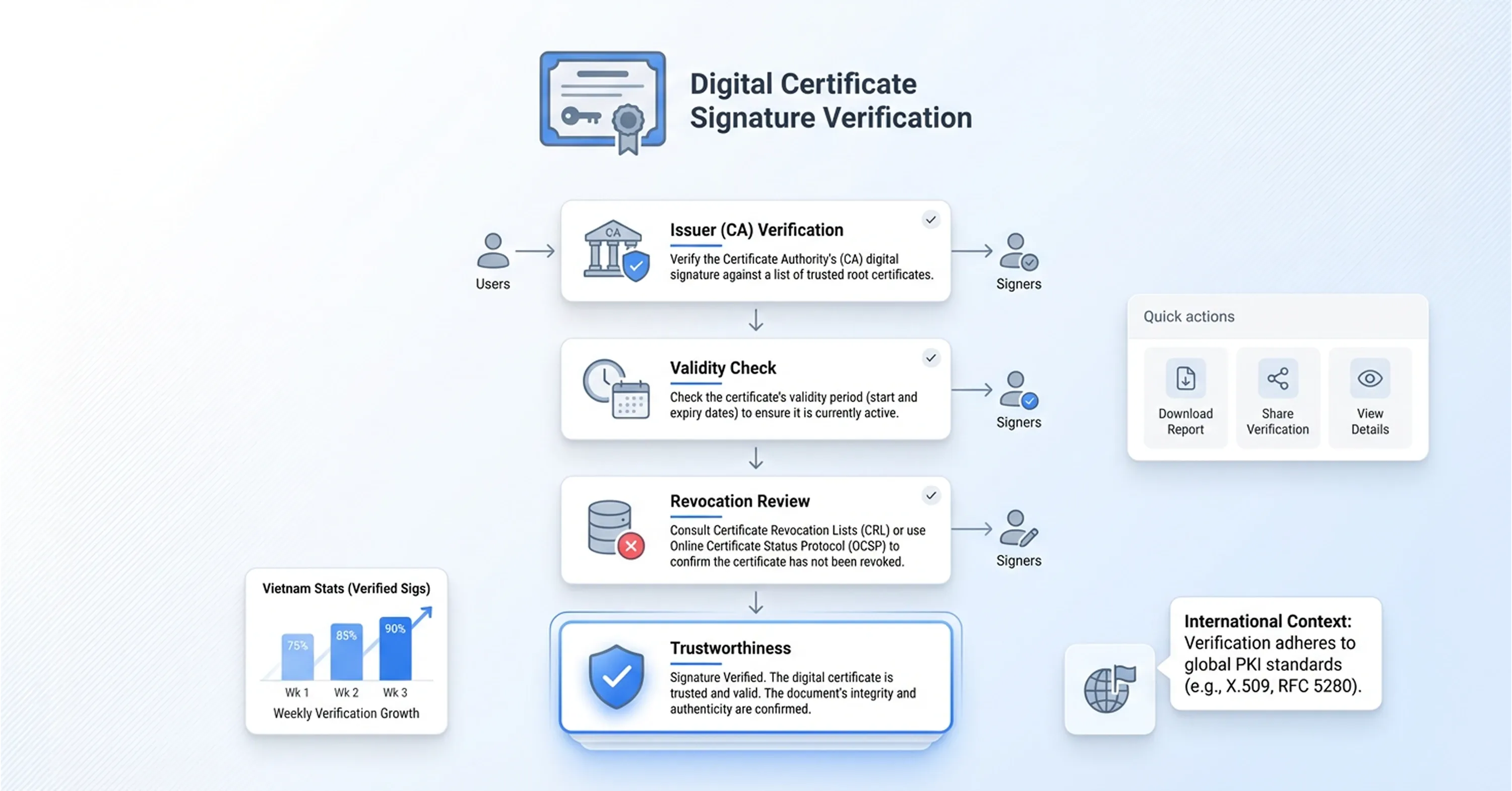
The certificate is the heart of verification. It tells you who signed, which organization issued the certificate, and when it expires.
What to Look For
Click on the signature in the panel, then select Certificate Details or Show Signer's Certificate. You'll see fields like:
-
Issued to: The signer's name or organization.
-
Issued by: The Certificate Authority (CA) that vouched for the signer.
-
Valid from / Valid to: The certificate's active date range.
-
Revocation status: Whether the certificate has been revoked before its expiry.
For a full explanation of how digital signing certificates work, from issuance to validation, read Digital Signing Certificates: What They Are & How to Issue One.
If the certificate was issued by a well-known CA (like DigiCert, GlobalSign, or a government-backed authority), and it was valid on the date of signing, that's a strong indicator the signature is trustworthy.
With nearly 3 million active public digital signature certificates in Vietnam alone as of March 2024, the infrastructure behind certificate issuance is substantial and well-regulated in many countries.
What If the Certificate Looks Unfamiliar?
If the issuing authority isn't one you recognize, don't panic.
You can:
-
Search the CA's name online to confirm it's a legitimate organization.
-
Ask the signer which signing platform they used.
-
Check whether your organization's IT team has added the CA to your trusted list.
This is especially common when dealing with international partners, since different countries rely on different certificate providers. For instance, 25 enterprises are licensed in Vietnam to provide public digital signature certification services, and their root certificates may not be pre-installed in every PDF reader.
Understanding the certificate is critical, but it only tells you who signed. Next, you need to confirm when they signed.
Verify the Timestamp
A timestamp proves the document was signed at a specific date and time, and that the signer's certificate was valid at that moment. This matters more than you might think.
Imagine a certificate expires on June 30. If the document was signed on June 29 with a trusted timestamp, it's still valid years later, even though the certificate has since expired. Without a timestamp, you'd have no way to confirm the signing happened during the certificate's validity window.
How to Check the Timestamp
In the signature panel, look for a field labeled Signing Time or Timestamp.
Key things to verify:
-
The timestamp was issued by a recognized Time Stamping Authority (TSA).
-
The signing date falls within the certificate's validity period.
-
The timestamp itself hasn't been tampered with (your PDF reader checks this automatically).
If no timestamp is present, the signature might still be valid, but it carries slightly less evidentiary weight, especially if the certificate has since expired.
Timestamps become particularly important for contracts, compliance documents, and audit trails where your team needs to prove exactly when a document was executed. If you need tips on audit trails, validation, and securely storing signed files, see What’s the easiest way to create a secure e-signature online?
With that settled, there's one more layer to check.
Trace the Trust Chain
The trust chain (sometimes called the certificate chain) is the sequence of certificates linking the signer's certificate back to a root Certificate Authority that your computer already trusts.
Think of it like a chain of endorsements:
-
Root CA: A top-level authority your operating system or PDF reader trusts by default.
-
Intermediate CA: A middle authority that the Root CA authorized.
-
End-entity certificate: The signer's own certificate, issued by the Intermediate CA.
If any link in this chain is broken, missing, or expired, the signature shows a warning. In most PDF readers, you can click Certificate Details > Trust tab to see the full chain.
For more details about certificate authorities, verifiable identity, and maintaining trust in digital transactions, see What Is a Certified Digital Signature? Legal Meaning & How to Get One.
Quick Troubleshooting
-
"Certificate not trusted": The root CA isn't in your trust store. Ask IT to add it, or manually verify the CA's legitimacy.
-
"Certificate revoked": The issuing authority canceled the certificate, possibly due to a security issue. Treat this signature with caution.
-
"Incomplete chain": An intermediate certificate is missing. The signer may need to re-sign with a properly configured certificate.
With 59% of organizations citing increased complexity in PKI orchestration, trust chain issues are surprisingly common in cross-organizational document workflows. Don't assume a warning automatically means the document is fraudulent.
Use a Signing Platform's Built-In Verification
If manually checking certificates and trust chains feels like too much, many signing platforms offer one-click verification.
Platforms like Agrello, for example, handle the verification process behind the scenes. When a document is signed through Agrello, the certificate, timestamp, and trust chain are all embedded and validated automatically, so anyone opening the document can see at a glance whether it's authentic.
This is especially useful for HR specialists, sales coordinators, and operations teams who process dozens of signed documents weekly. Instead of inspecting each certificate manually, you can rely on the platform's verification status, which stays embedded in the document itself.
If you’re considering automated or AI-powered tools for digital signature verification, you’ll find a useful overview in How can AI detect and prevent forged digital signatures?.
When to Use Manual vs. Platform Verification
-
Manual check: When you receive a signed document from an unknown source or a new vendor.
-
Platform check: When the document was signed within a trusted system your organization already uses.
-
Both: For high-value contracts, compliance-sensitive files, or legal disputes.
The digital signature market is projected to reach USD 154.52 billion by 2034, with a CAGR of 35.40%. As adoption grows, built-in verification tools will become even more seamless and widespread.
How to Tell If a Digital Signature Is Authentic at a Glance
A digital signature is authentic when: the signer's certificate is valid, issued by a trusted Certificate Authority, the document hasn't been modified since signing, a trusted timestamp confirms the signing date, and the full trust chain traces back to a recognized root authority.
For an actionable checklist on digital signature verification, and crucial details on compliance, you may also like How to Use a Digital Signature Generator (Free & Paid Tools).
Use this five-point checklist every time you need to confirm a signature:
-
Certificate is valid and not expired at the time of signing
-
Certificate Authority is recognized and trusted
-
Document integrity is intact (no modifications detected)
-
Timestamp is present and issued by a trusted TSA
-
Trust chain is complete, from signer to root CA
Conclusion
Verifying a digital signature doesn't require a background in cryptography. It comes down to checking three things: the certificate, the timestamp, and the trust chain. Most PDF readers handle the technical work automatically. Your job is to understand what the green checkmarks and warning icons actually mean, and to know when to look deeper.
As more teams rely on digital signatures for contracts, onboarding documents, and compliance paperwork, this quick verification skill saves time and prevents costly mistakes. Whether you run the check manually or rely on a signing platform's built-in tools, the process takes less than a minute once you know what to look for.